
Workshop toolsFree and Pro
The Toolbox: parts, realtime log, crash logs and device label
The Toolbox gathers the tools you use at the bench, grouped by task, next to a card with the connected device. Most tools need a connected phone; a few, such as the device label and the Apple Diagnostics guide, are free.
The device card
The card on the left shows the connected phone with its model, capacity, serial number and iOS version, and four actions. Each asks for confirmation first:
- Restart: the phone restarts; unlock it afterwards to reconnect.
- Shut down: the phone turns off; turn it on again with the side button.
- Lock screen: the screen turns off, as with a short press on the side button.
- Rename: changes the name shown in Finder, Apple Devices, AirDrop and Bluetooth.
The actions need Pro.
The tools
| Group | Tools |
|---|---|
| Hardware checks | Face ID check, Parts and modules, Charging and cable, Verification report |
| Device | Realtime log, Crash logs, Device label, Ringtones |
| Data | Backup and restore, Transfer data, Apps, Photos and videos |
| Firmware and recovery | Flash firmware, Recovery and DFU guide, Firmware download |
| Diagnosis | Panic analyzer, Apple Diagnostics, Apple drivers |
A tool that needs a phone shows Needs a device when none is connected; a Pro tool shows a lock on the free plan. The tools without their own guide are explained below.
Parts and modules
Shows the serial numbers and IDs that the parts report to the phone, per group:
- Cameras: rear wide, ultra wide and telephoto, and the front camera.
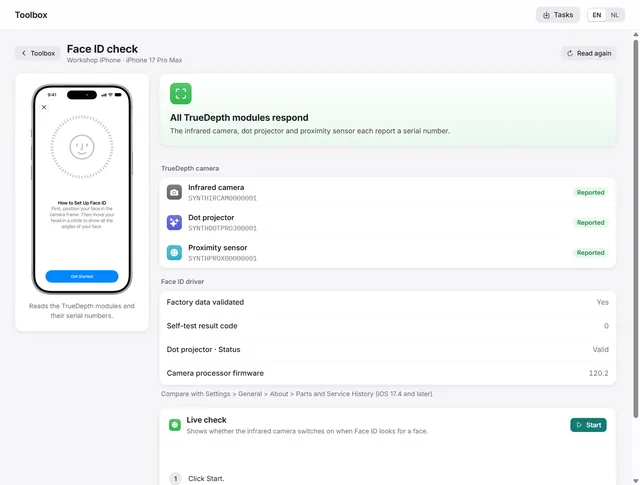
- TrueDepth camera: infrared camera, dot projector and proximity sensor.
- Battery and haptics: the battery and the Taptic Engine.
- Display: the display panel ID and the touch controller ID.
- Logic board: the storage (model, serial number and firmware), the Wi-Fi chip with its firmware, and the Lightning interface module.
Copy as text copies the whole list, for example for your records before a repair. The list shows the serial numbers as the parts report them; whether parts are genuine is shown on the phone under Settings > General > About > Parts and Service History. The tool is part of Pro.
Realtime log
The live system log of the phone, the same stream a Mac shows in Console:
- Open Realtime log and click Start. Use the phone to see its activity.
- Filter with Search messages, a Process, and the level: All, Warnings and errors or Errors.
- Pause freezes the view while BenchDock keeps receiving; Resume shows everything again. Clear empties the view.
- Save saves the lines to a text file.
The log helps to see what the phone does at the moment a fault occurs, for example which process complains when a sensor fails. The tool is part of Pro.
Crash logs
Lists the crash reports on the phone by type: Kernel panics, Memory (Jetsam), Reset reports, App crashes and Other. The reports are copied from the phone to read them.
- View opens a report.
- Add to Cases analyses a panic and stores it as a case. Add panics to Cases does that for every panic in the list.
- Delete from device removes the reports of the chosen type from the phone after you confirm. Add the panic logs you need to Cases first; deleting cannot be undone.
For patterns across many reports, use Crash analysis. The tool is part of Pro.
Device label
Prints a label of 90 × 55 mm for a phone you sell or return: the model, capacity, iOS version, serial number and IMEI, with the battery health and cycles, a condition, a price, your shop name and a note.
- Open Device label with the phone connected.
- Fill in Shop name, Condition (for example A, as new), Price and Notes.
- With Pro, click Read device report to add the battery health and the IMEI.
- Tick Hide serial numbers to print them masked.
- Click Print label and choose the label printer and the paper size in the print dialog.
The device label itself is free.
Apple Diagnostics
Explains how to start Apple's own diagnostics mode on the phone, part of Recovery Assistant on iPhone 14 and later and recent iPads. It needs Wi-Fi, and the results appear only on the phone:
- Make sure a Wi-Fi network is available for the phone.
- Turn the phone off.
- Press and hold the side button while the phone starts, until Recovery Assistant appears.
- Tap Diagnostics Mode and follow the instructions on the phone.
- To leave a test, press the side button or one of the volume buttons.
If a problem is found, the phone shows how to arrange service with Apple. The source is Apple Support article 101944. BenchDock's own verification report reads battery health, activation, Find My, profiles and part records without a restart.
Questions
Which Toolbox tools are free?
The device label, the Apple Diagnostics guide, the recovery and DFU guide, flashing, the panic analyzer and the drivers. The other tools need Pro.
Is the realtime log saved automatically?
No. Click Save to keep the lines you need.
Related guides
-
 Workshop tools
How to check Face ID after a screen repair
Which TrueDepth module still responds, with the serial numbers the modules report, and a live test of the infrared camera. Pro -
 Workshop tools
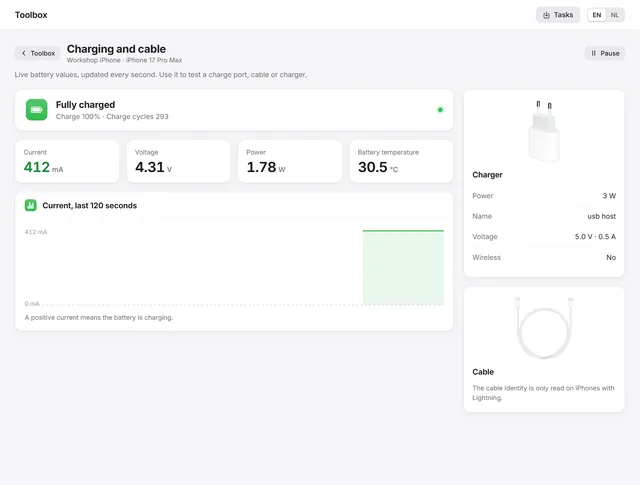
How to test an iPhone charging port and cable
Live current, voltage and power every second, the power source and the cable the phone reports, and the codes for not or slow charging. Pro -
 Panic analysis
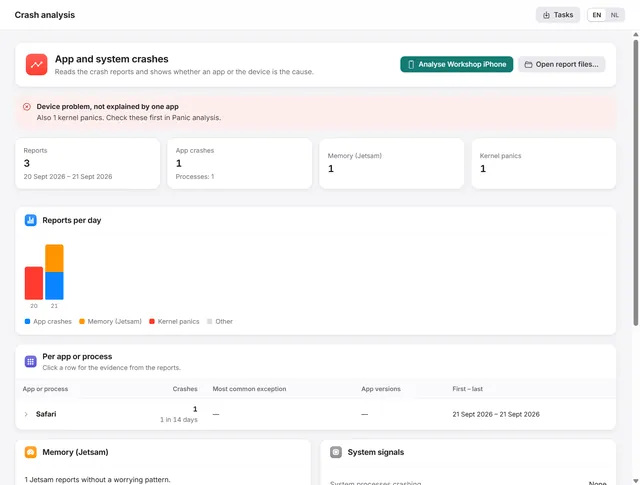
Crash analysis: is it the app or the iPhone?
Groups app crashes, memory stops and heat stops per app, and tells you whether an app or the device is the cause. Pro -
 Device
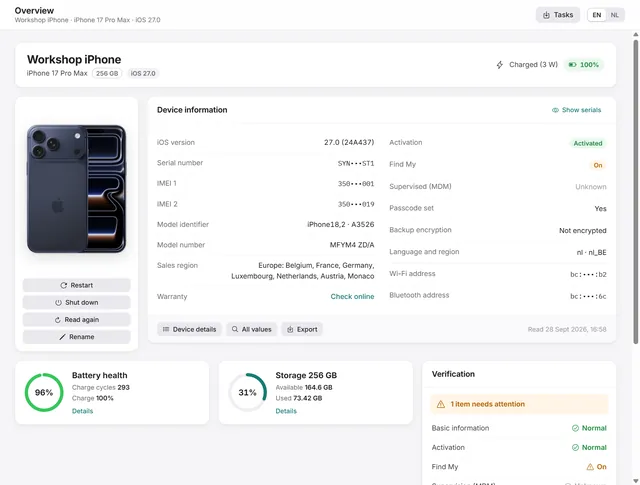
Device overview: serial number, IMEI, battery health and storage of an iPhone
Identity, activation, Find My, battery health, charge cycles and storage at a glance, with every value the phone returns. Free and Pro