
Backups and dataPro
How to transfer data from one iPhone to another
The Transfer page moves data from one device to another in one task: from an iPhone or iPad that is connected, or from a backup on the PC. You choose everything, which makes the target an exact copy, or only the categories the customer wants, such as photos and contacts. The page is part of Pro.
Before you start
- Both devices connected to the PC with a data cable, directly, unlocked and trusted. For a backup as source, only the target needs to be connected.
- Find My off on the target. BenchDock checks this.
- The target on the same or a newer iOS version than the source.
- The target set up and activated.
- Enough free space on the PC for the backups the transfer makes, and on the target for the data.
Step 1: Choose the source and the target
- Click Transfer in the sidebar.
- Under Source and target, choose Connected device or Backup on this PC as source.
- Choose the source device or backup, and the target device. Swap direction turns them around.
For each device you see its photo, name, iOS version and used and free space, and for the target whether Find My is on or off.
Step 2: Choose what to transfer
- Chosen data: tick the categories: photos and videos, contacts, messages, notes, calendar, call history, voicemail, Safari, apps and app data, settings and other data. The quick choices Photos only, Photos and contacts and All personal data tick them for you. Each category shows how many items the source has.
- Everything (exact copy): the target becomes a copy of the source. Everything on the target is replaced.
Each chosen category replaces the same category on the target; the data is not merged. When the target already has data, keep Back up the target first on: BenchDock then makes a safety backup of the target before it changes anything. That backup stays under Backup & restore.
Step 3: Check
BenchDock checks both devices and shows the result under Checks. Blockers stop the transfer until they are solved:
| Blocker | What to do |
|---|---|
| Find My is on on the target | Turn it off on the target under Settings → (name) → Find My, then check again. |
| The target has an older iOS | Update the target to the iOS version of the source or later. |
| The target is not activated | Finish the setup of the target first. |
| Backup is incomplete | Make a new backup of the source. |
| Encrypted backups: everything only | The source uses encrypted backups. Choose Everything, or turn off backup encryption first. |
| Not enough space on this PC or on the target | Free up space, or choose another backup folder in Settings. |
What happens lists what the transfer will do, for example that apps download again from the App Store, that photos stored only in iCloud come back after signing in to iCloud Photos, or that passwords, Health and Wi-Fi only move with an encrypted backup.
Step 4: Start
- If the source uses encrypted backups, enter its backup password.
- Type the last four characters of the target's ID to confirm which phone is the target.
- Click Transfer everything, or Transfer … categories.
The transfer runs as one task with these phases: a safety backup of the target (if chosen), a backup of the source, selecting the chosen data, restoring onto the target, the target restarting, and checking the result. Keep both devices connected and unlocked until it is finished. A phone may ask for its passcode to allow a backup; the page tells you when.
After the transfer
- Unlock the target and let the apps finish. Apps download again from the App Store, which needs Wi-Fi and the Apple Account.
- BenchDock counts the photos and videos on the target and compares them with what was transferred.
- Verify with a backup makes a backup of the target and compares its photos and contacts with the source.
- Data that is only in iCloud returns when the owner signs in with the same Apple Account.
Questions
Is WhatsApp transferred?
WhatsApp data is part of Apps and app data, and of Everything. The app itself downloads again from the App Store on the target.
Can I restore a backup to a new phone?
Yes. Choose Backup on this PC as source, or click Restore next to a backup on the Backup & restore page.
What if the transfer stops halfway?
The target may be left in an incomplete state. Read the message and the log of the task, solve the cause and start the transfer again. With Back up the target first on, the safety backup of the target is under Backup & restore.
Related guides
-
 Backups and data
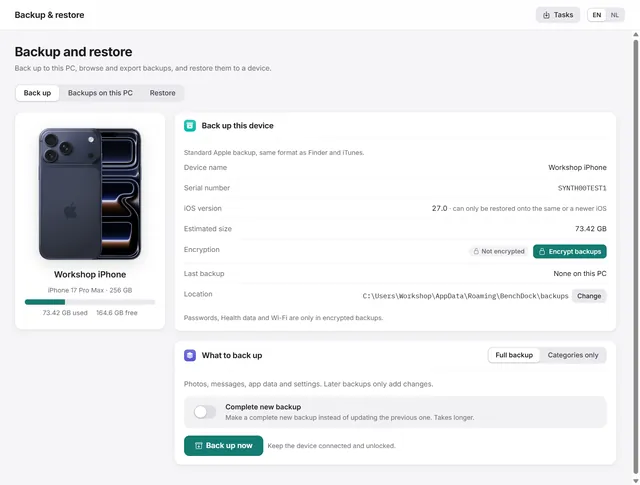
How to back up an iPhone on Windows, encrypted or not
Apple-format backups with or without encryption, every backup on the PC in one list, and restoring to a device. Pro -
 Backups and data
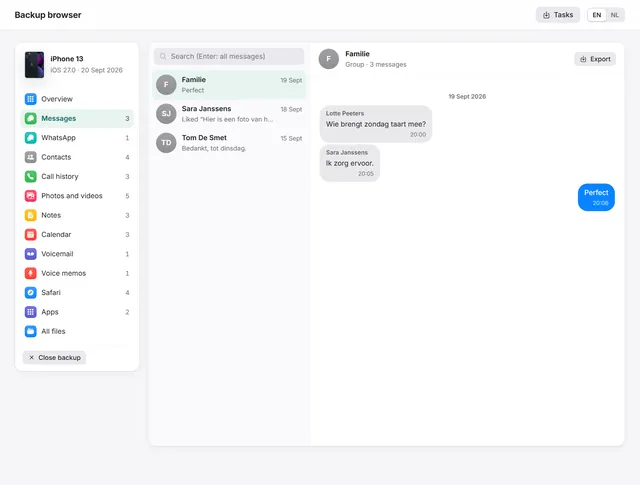
How to view WhatsApp, messages and photos in an iPhone backup on a PC
Open any iPhone backup, also encrypted, and read messages, WhatsApp, photos, contacts and notes. Export chats as PDF with pictures. Pro -
 Backups and data
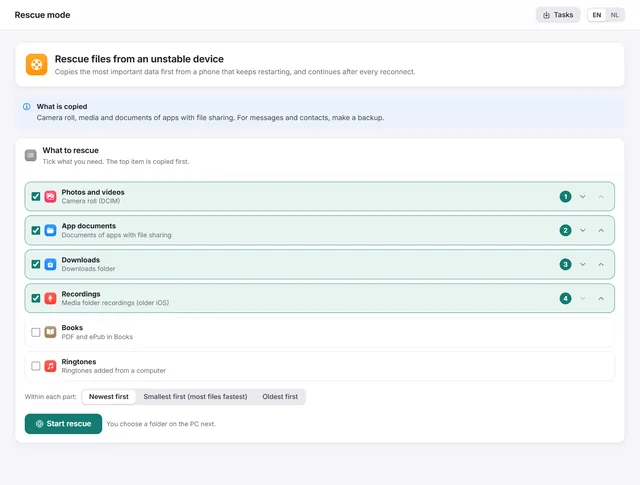
How to get photos off an iPhone that keeps restarting
Copies the most important files first from a phone that keeps restarting, and continues by itself after every reconnect. Pro -
 Device
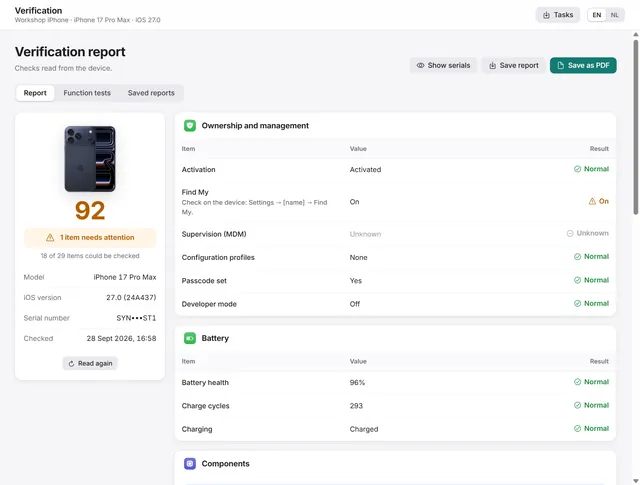
How to check a used iPhone before you buy it
Activation, Find My, management, battery health and part records in one report, plus function tests, saved as PDF. Pro