
Backups and dataPro
How to get photos off an iPhone that keeps restarting
A phone that restarts every few minutes rarely stays on long enough for a full backup. Rescue mode works differently. It copies file by file, notes every file that is safely on the PC, and carries on where it stopped as soon as the phone is back. The most important files go first. Rescue mode is part of Pro.
What rescue mode copies
- Photos and videos: the camera roll (DCIM).
- App documents: the documents of apps with file sharing.
- Downloads: the Downloads folder.
- Recordings: recordings in the media folder (older iOS versions).
- Books: PDF and ePub files in Books.
- Ringtones: ringtones added from a computer.
Messages, contacts and app data such as WhatsApp are not in these folders. For those, a backup is needed; when the phone is stable enough for a backup, make one.
Start a rescue
- Connect the phone, unlock it and tap Trust.
- Click Rescue mode in the sidebar.
- Under What to rescue, tick what you need. The top item is copied first; move items with Higher priority and Lower priority.
- Choose the order within each part: Newest first, Smallest first (the most files in the least time) or Oldest first. Smallest first saves the most files in the least time; newest first saves the latest photos first.
- Click Start rescue and choose a folder on the PC.
While it runs
The page shows how many files are safe on the PC, the size, the progress per part and the number of connections used so far.
When the phone restarts or disconnects, the state changes to Waiting for the device. Reconnect it if needed and unlock it: as soon as the same phone is ready again, the rescue continues by itself. You do not have to click anything.
Every file is first copied under a temporary name and only counts when it is complete, so a restart in the middle of a file never leaves a broken file behind. A file that fails three times is skipped and listed under Files that could not be copied, so one bad file does not block the rest.
Connection history logs every connect, disconnect and finished round with the time. That also tells you how long the phone stays on between restarts, which is useful for the diagnosis.
Stop and continue later
- Stop pauses the rescue. Continue picks it up again.
- The rescue also continues after BenchDock itself has been closed: open Rescue mode, connect the phone and click Continue. Files that are already on the PC are not copied again.
- Open folder opens the folder with the rescued files.
- Forget this rescue removes the list of what was copied. The files already in the folder stay.
Earlier rescues on this PC are listed under Other rescues on this PC.
Tips
- Read the panic logs first if the phone gives you the time: they often point to the part that causes the restarts. Fitting that part, such as a battery or a charge port flex, can make the phone stable enough for a full backup.
- Plug the cable directly into the PC, without a hub or adapter, so the connection itself does not drop.
- If the phone is stable for a while, make a backup for the messages and app data.
Questions
Does rescue mode change anything on the phone?
No. It only reads and copies.
The phone does not stay on long enough to connect
Rescue mode needs the phone to reach the point where it can be trusted. If it restarts before that, look at the cause first, for example with the panic analysis.
Related guides
-
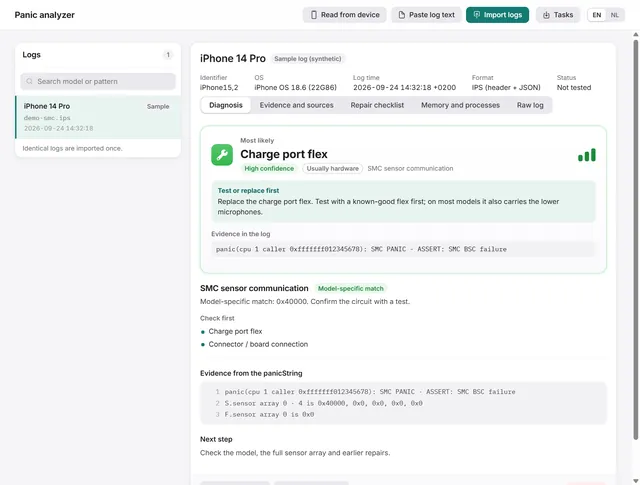 Panic analysis
How to read an iPhone panic log and find the faulty part
Import, paste or read a panic log over USB. BenchDock names the part to test first, with the confidence and the evidence line. Free -
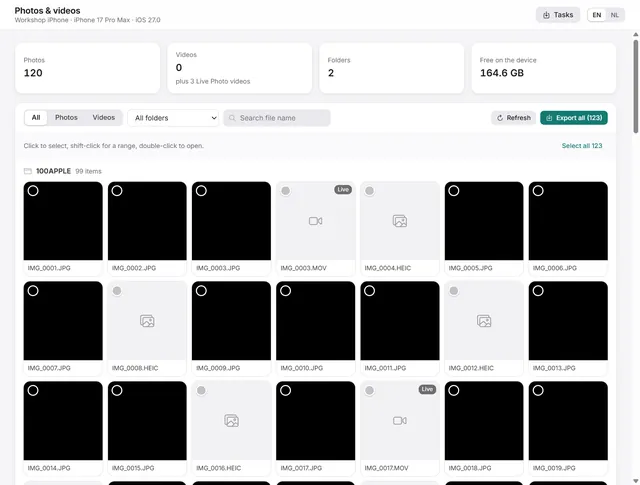 Device
How to copy photos and videos from an iPhone to a Windows PC
Browse the camera roll, view photos, play videos and export the originals to a folder on the PC. Pro -
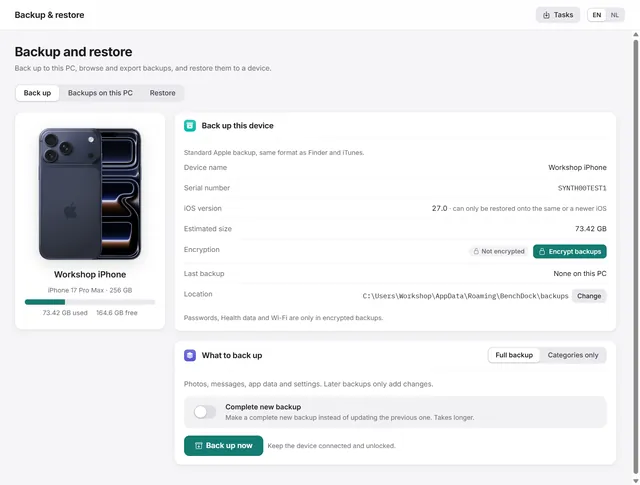 Backups and data
How to back up an iPhone on Windows, encrypted or not
Apple-format backups with or without encryption, every backup on the PC in one list, and restoring to a device. Pro -
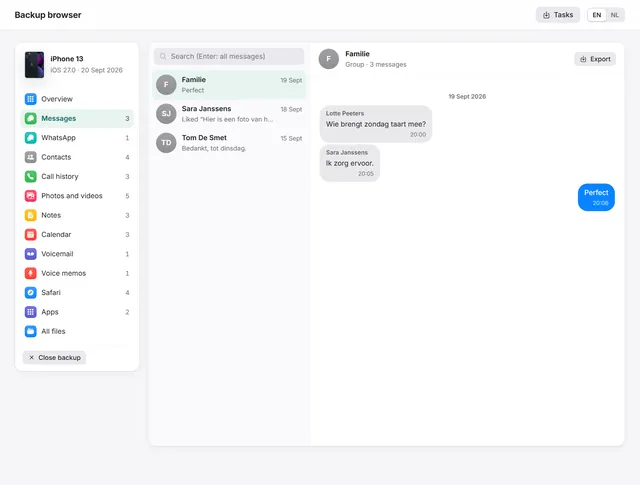 Backups and data
How to view WhatsApp, messages and photos in an iPhone backup on a PC
Open any iPhone backup, also encrypted, and read messages, WhatsApp, photos, contacts and notes. Export chats as PDF with pictures. Pro