
Backups and dataPro
How to back up an iPhone on Windows, encrypted or not
The Backup & restore page makes backups of the connected iPhone or iPad in Apple's own format, the same format Finder, iTunes, Apple Devices and 3uTools use. It lists every backup on the PC, also the ones made with Apple's programs, and restores them to a device. The page is part of Pro.
Make a backup
- Connect the iPhone, unlock it and tap Trust.
- Click Backup & restore in the sidebar. The tab Back up shows the device with its estimated backup size, the encryption state, the last backup on this PC and the backup location.
- Under What to back up, choose Full backup or Categories only.
- Click Back up now. BenchDock shows the plan first: the estimated size, the free space on the PC, the encryption and the location. If there is not enough space, it says so before anything starts.
- Click Start reviewed backup.
- The phone may ask for its passcode when the backup starts. Enter it on the phone.
Keep the phone connected and unlocked until the backup is complete. Progress shows on the page and under Tasks, with the size and number of files written so far. A large phone can take an hour or more. When it is done, BenchDock checks the backup and lists it under Backups on this PC.
Full backup or categories only
| Type | What you get |
|---|---|
| Full backup | Everything in an Apple backup: photos, messages, app data and settings. Use it to restore a phone or to move to a new one. Later backups of the same phone only add the changes. |
| Categories only | A full backup is made first, then only the chosen categories are copied into a separate archive folder: photos and videos, contacts, messages, notes, calendar, call history, voicemail, Safari, apps and app data, settings and other data. |
Categories only needs backup encryption to be off; with encryption on, the check stops with Backup encryption is on.
Complete new backup makes a new backup from scratch instead of updating the previous one. It takes longer; use it when the previous backup is damaged or incomplete.
Encrypted backups
An encrypted backup also contains the saved passwords, Wi-Fi networks, call history and Health data. An unencrypted backup does not. Encryption is a setting of the phone itself, so it applies to every backup of that phone, also in Finder or iTunes.
- Encrypt backups: type a password twice and click Turn on. The phone asks for its passcode to confirm.
- Change password: enter the current and the new password.
- Turn off encryption: enter the current password.
Keep the password safe. Without it, an encrypted backup cannot be restored, and it can only be opened in the backup browser with that password. The password is not saved; it is only passed to the backup tool for that one action.
Backups on this PC
The tab Backups on this PC lists every backup BenchDock finds:
- BenchDock: backups in BenchDock's own backup folder.
- Apple Devices and iTunes: backups made with Apple's programs, read-only.
For each backup you see the device, the iOS version, the date, the size and whether it is Complete, Incomplete or Encrypted. Filter with the buttons above the list.
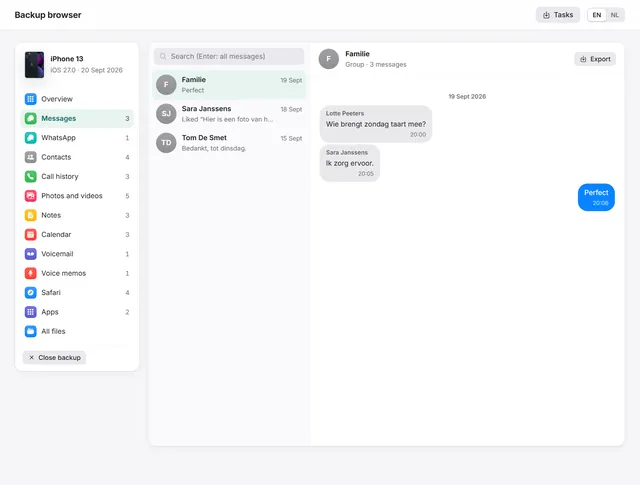
- View contents opens the backup in the backup browser: messages, WhatsApp, photos, contacts and more.
- Restore starts restoring this backup to a connected device.
- Add backup folder copies a backup from elsewhere, such as an external drive, into BenchDock's library. Choose the folder named after the device ID, or the folder that contains it.
- The bin icon deletes a backup from BenchDock's own folder after you confirm. Backups of Apple Devices and iTunes are never deleted by BenchDock.
Restore a backup
- Connect the target device, unlocked and trusted.
- Open the tab Restore and click Restore next to a complete backup.
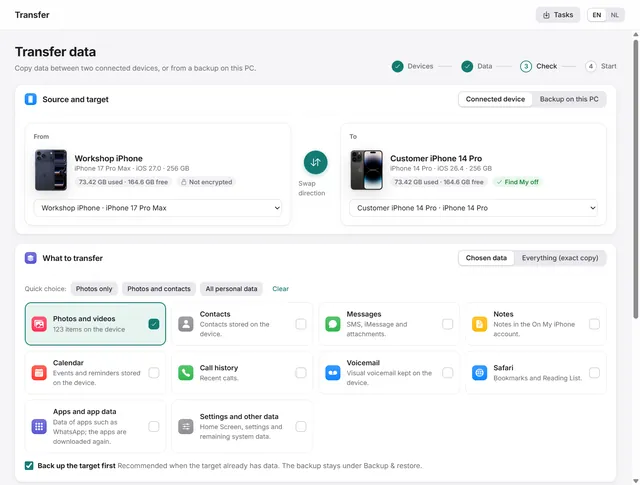
- BenchDock opens the Transfer page with the backup as source. Choose everything or only categories such as photos or contacts, check the plan and start.
A backup can only be restored onto the same or a newer iOS version. See Transfer data to another iPhone for the details and checks.
Where backups are stored
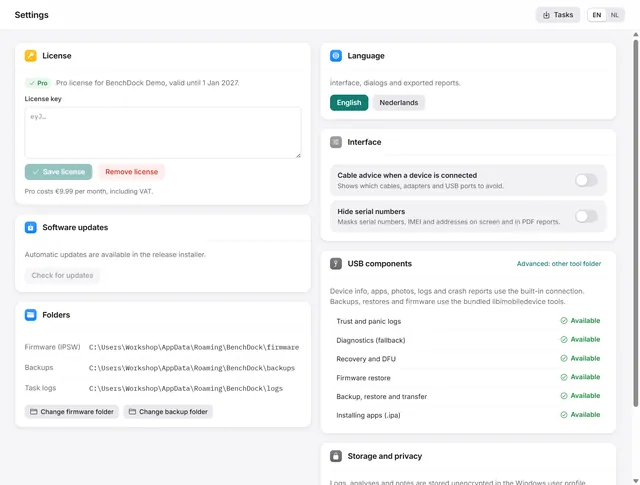
BenchDock's own backups are stored in %APPDATA%\BenchDock\backups unless you choose another folder. Click Change next to Location on the Back up tab, or use Settings. Backups are large, so a folder on a second drive is often a good choice.
Questions
Is a BenchDock backup compatible with iTunes and Finder?
Yes. It is a standard Apple backup in the same format.
What is not in a backup?
Data that is only in iCloud, such as iCloud Photos and messages with Messages in iCloud on, is not in a computer backup. It comes back when the owner signs in with the same Apple Account. Passwords, Wi-Fi and Health data are only in encrypted backups.
The backup stops with a code
BenchDock translates the device codes: for example code 105 means not enough space on the PC, 208 that the phone was locked while it needed protected data, and 200 that the connection was lost. The message says what to do.
Related guides
-
 Backups and data
How to view WhatsApp, messages and photos in an iPhone backup on a PC
Open any iPhone backup, also encrypted, and read messages, WhatsApp, photos, contacts and notes. Export chats as PDF with pictures. Pro -
 Backups and data
How to transfer data from one iPhone to another
From one iPhone or iPad to another, or from a backup: everything, or only chosen categories such as photos and contacts. Pro -
 Backups and data
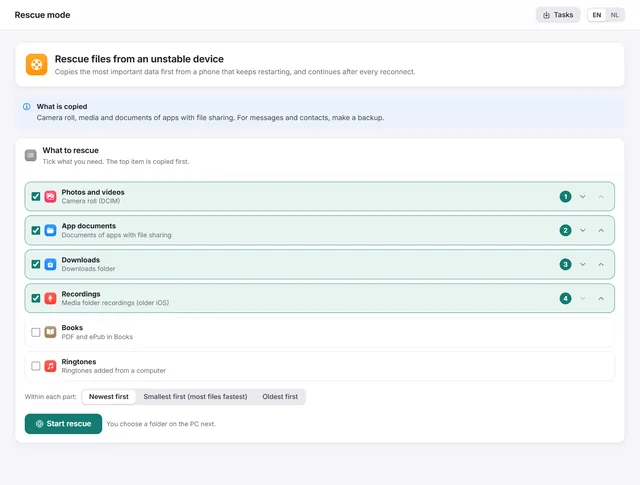
How to get photos off an iPhone that keeps restarting
Copies the most important files first from a phone that keeps restarting, and continues by itself after every reconnect. Pro -
 Getting started
BenchDock settings and the Pro licence
Enter or remove the Pro licence, move the firmware and backup folders, switch language and hide serial numbers in reports. Free