
Getting startedFree
BenchDock settings and the Pro licence
Click Settings at the bottom of the sidebar to manage your licence, updates, folders, language and interface.
Licence
The badge at the top shows your plan, Free or Pro, with a line that explains the state:
| State | Meaning |
|---|---|
| Free plan | Panic analysis, flashing and firmware, cases and drivers work without a licence. |
| Pro licence for (name), valid until (date) | Pro is active. |
| The Pro licence has expired | The Pro tools stop. Free features keep working. |
| The saved licence key is not valid | The key was changed or is not a BenchDock key. |
Activate Pro
- Copy the licence key you received. It is one long line of text.
- Paste it in the field License key.
- Click Save license. The badge changes to Pro and the locked pages open.
These are the controls in the current v0.8 preview. Its test keys are checked locally. Remove license removes the key from this PC.
Subscription activation in the upcoming release
The subscription service is being prepared and is not yet public. Online builds use Activate on this PC instead of Save license. After purchase, save the key shown on the payment confirmation page, paste it here and activate with an internet connection.
One licence supports one active Windows PC. The app checks the subscription at startup and refreshes its access regularly. It can work offline for up to seven days after a successful check, or until the end of the paid period if that is sooner. There is no additional seven-day period after that deadline.
To move to another PC, connect the old PC to the internet and choose Deactivate this PC. Activate the same key on the new PC. If the old PC is unavailable, contact support with your payment receipt. Check subscription requests an immediate update. If the Windows date or time is incorrect, correct it before checking again.
A temporary network failure keeps an existing, unexpired offline activation available. When access expires, panic analysis, flashing and drivers remain free. Backups and saved cases stay on the PC.
Software updates
In the public release installer, BenchDock checks for updates at startup and every six hours. Updates download automatically. Software updates shows the download progress and lets you check manually.
When a version is ready, Restart and update closes BenchDock and installs it. Finish running tasks and screen recordings first. You can also keep working and close BenchDock later; the ready update installs on normal exit when no task or recording is running. Free and Pro both receive updates. Backups, licences and saved cases remain in your Windows profile.
Source builds and the separate preview installer do not download production updates. A failed download leaves your installed version usable; try Check for updates again later.
Folders
| Folder | Default location | Used for |
|---|---|---|
| Firmware (IPSW) | %APPDATA%\BenchDock\firmware | Downloaded and imported firmware files |
| Backups | %APPDATA%\BenchDock\backups | Backups made with BenchDock |
| Task logs | %APPDATA%\BenchDock\logs | The log file of every task, such as restores and backups |
Firmware files and backups are large. If the system drive is small, click Change firmware folder or Change backup folder and choose a folder on another drive. BenchDock uses the new folder from then on; files in the old folder stay where they are.
Language
Choose English or Nederlands. The language applies to the interface, dialogs and exported reports. You can also switch at any time with EN / NL at the top right of the window.
Interface
- Cable advice when a device is connected: shows the window Device connected with the cable tips each time a device is plugged in. See Getting started.
- Hide serial numbers: masks serial numbers, IMEI numbers and addresses on screen and in PDF reports. Turn it on before you take screenshots or print a report for someone else.
USB components
BenchDock talks to phones in two ways. Device information, apps, photos, logs and crash reports use its own built-in connection. Backups, restores and firmware use bundled libimobiledevice tools. The table shows for each function whether its tools are Available. BenchDock finds and checks the bundled tools by itself.
Advanced: other tool folder lets you point BenchDock to another build of the USB tools. Only use it if you know why; without it, the checked bundled tools are used.
Storage and privacy
Panic logs, analyses and notes of your cases are stored in %APPDATA%\BenchDock\data, in the Windows user profile, without encryption. Delete cases you no longer need. Exported reports leave out the raw log, your notes and the device ID (UDID).
Logs, backups and reports stay on the PC. BenchDock uses the internet for the firmware list, downloads from Apple, signing during a restore and driver installation. Online subscription builds also contact the licence service with a licence identifier and a hashed Windows installation identifier. The release installer also contacts the update service to download new versions. Phone contents are not sent with these requests.
Questions
Where do I get a licence key?
BenchDock is in preview. Subscriptions open with the public release.
Related guides
-
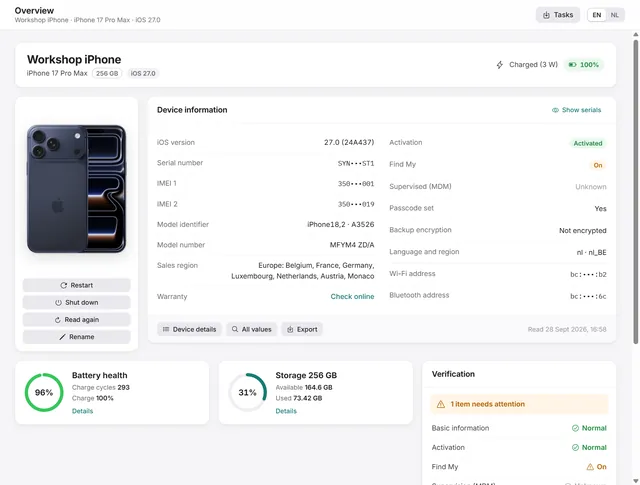 Getting started
Getting started with BenchDock
What you need, how to connect a phone and trust the computer, and how the window is laid out. Free -
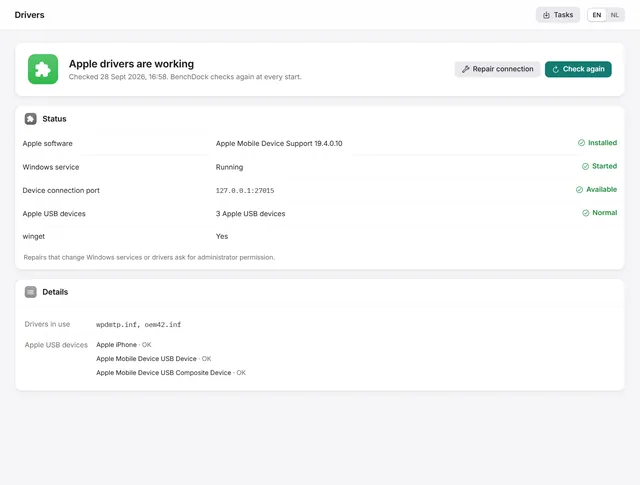 Getting started
iPhone not detected on Windows? Check and repair the Apple drivers
What to do when Windows does not see the iPhone: BenchDock checks the Apple drivers and the connection service and repairs them. Free -
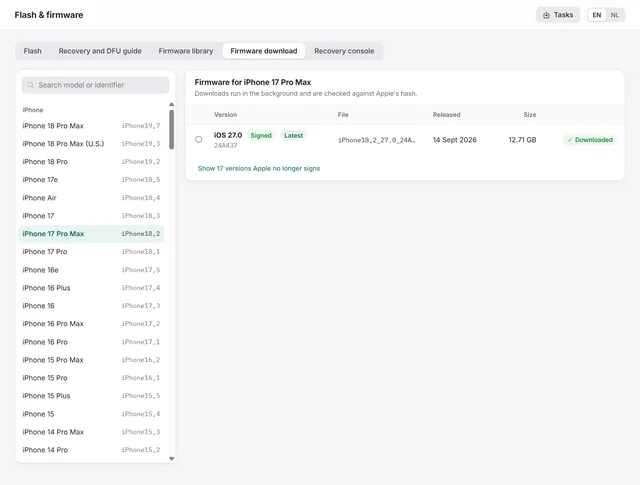 Flash and firmware
How to download iPhone and iPad firmware (IPSW) on Windows
Signed IPSW files for any iPhone or iPad, downloaded from Apple and hash-checked, plus the library of firmware on your PC. Free -
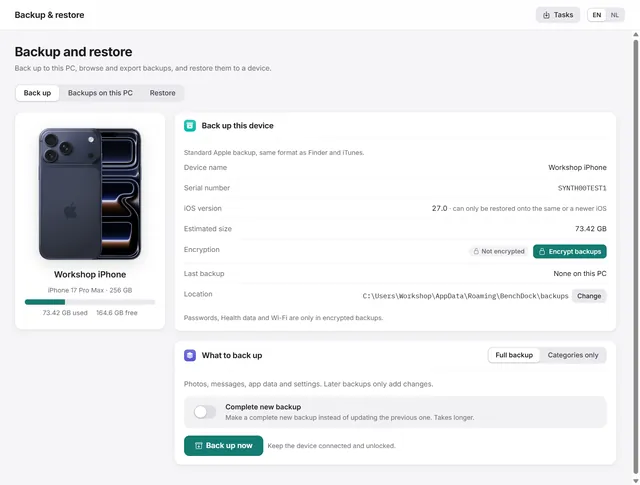 Backups and data
How to back up an iPhone on Windows, encrypted or not
Apple-format backups with or without encryption, every backup on the PC in one list, and restoring to a device. Pro