
Getting startedFree
Getting started with BenchDock
BenchDock is a Windows program for phone repair shops. It reads panic logs, flashes firmware, reads and makes backups, checks parts and rescues data from iPhones and iPads. This page covers what you need, how to connect the first device and where everything is in the window.
What you need
- A PC with Windows 10 or 11 (64-bit).
- A USB data cable for the device. Some cheap cables only charge.
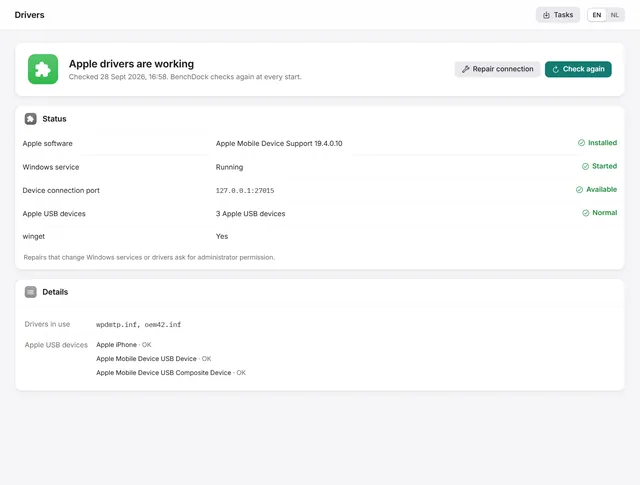
- Apple's device drivers: the Apple Devices app or Apple Mobile Device Support. If they are missing, BenchDock installs them for you; see iPhone not detected on Windows.
- An internet connection for the firmware list, firmware downloads, Apple's signing during a restore and driver installation. Everything else works offline.
- Free disk space for backups and firmware files. A firmware file for a recent iPhone can be larger than 10 GB.
BenchDock is in preview. Downloads and subscriptions open with the public release.
For screen mirroring, use the same local network on the PC and iPhone or iPad. This Pro feature connects through Screen Mirroring on the device and a code shown in BenchDock; it does not require USB or the Apple USB drivers.
First start
At every start, BenchDock checks the Apple drivers and the connection service. The result shows in the status bar at the bottom of the window and next to Drivers at the bottom of the sidebar. If something is wrong, open Drivers and use the button shown there.
Connect an iPhone or iPad
- Connect the device with a USB cable, directly into the PC.
- The window Device connected opens. It shows the device with its photo, name, model, iOS version and storage, and the connection state as it changes.
- Unlock the phone. When it asks Trust This Computer?, tap Trust and enter the passcode.
- When the state shows Ready to use, click OK.
The window also gives three tips: use an undamaged Apple or MFi-certified data cable, plug it straight into the PC without a hub or adapter, and tap Trust the first time. With Pro, it also shows the cable the phone reports, with name, manufacturer, model and serial number. That works on iPhones with a Lightning port.
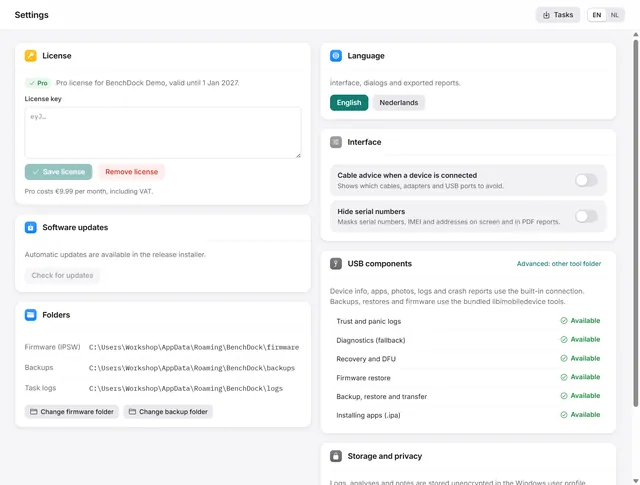
Tick Do not show again if you do not need the window any more. You can turn it back on in Settings under Cable advice when a device is connected.
The connection states
| State | What to do |
|---|---|
| Reading the device… | Wait a moment. |
| Unlock the iPhone and tap Trust | The phone waits for the Trust prompt. Unlock it and tap Trust. |
| Unlock the iPhone with its passcode | The phone is locked. Unlock it. |
| Trust was declined | Someone tapped Don't Trust. Disconnect, connect again and tap Trust. |
| Ready to use | Everything works. |
| The device could not be read | Disconnect and connect again, then check the drivers. |
The window
Sidebar
At the top of the sidebar is the device switcher: the connected device with its photo, name, model and a coloured dot for its state. With more than one device connected, click it to choose another one. A device you plug in is selected automatically.
Below it, the tools are grouped:
- Device: tools such as Overview, Verification, Screen, Apps, Photos & videos, Files, Storage and Ringtones. Screen uses its own network connection; the other device tools use the selected USB device.
- Workshop: Transfer, Backup & restore, Backup browser, Rescue mode, Flash & firmware and Toolbox.
- Panic analysis: Panic analyzer, Crash analysis, Cases and the Knowledge base.
At the bottom are Drivers, with a dot for the driver status, and Settings. Pages that need Pro show a lock on the free plan.
Top bar
The top bar shows the page title and, on device pages, the name, model and iOS version of the selected device. Next to it are the buttons of the page, Tasks and the language switch EN / NL. BenchDock switches language immediately; reports and saved cases follow the chosen language.
Tasks
Long jobs run as tasks: downloads, backups, exports, restores, transfers and ringtones. Click Tasks at the top right to see them all, with their progress, the step in progress, Stop where a task can be stopped, and Log to open the log file. You can keep working on other pages while a task runs. Only one task at a time can write to the same device.
Status bar
The status bar at the bottom shows the number of connected devices, the state of the Apple drivers, your plan (Free or Pro), the number of running tasks and the BenchDock version.
Free and Pro
The free plan is free for good:
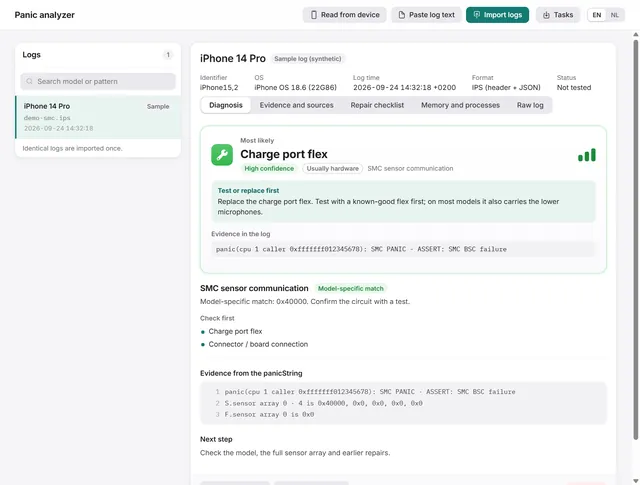
- Panic analysis: import, paste or read panic logs over USB, with the part to test first. See How to read an iPhone panic log.
- Cases and the knowledge base.
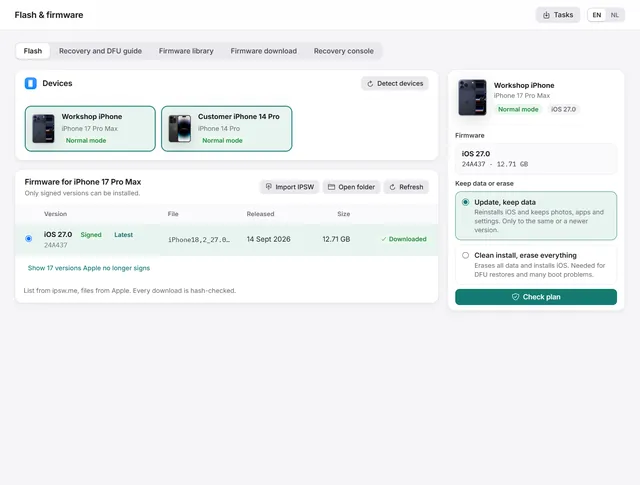
- Flash and firmware: signed iOS from Apple, update with data kept or clean install, the recovery and DFU guide, the firmware library and the recovery console. See How to restore or update an iPhone.
- Driver check and repair.
Pro costs €9.99 a month (including VAT) and adds every other tool: the full device readout and verification report, backups and the backup browser, rescue mode, transfer, files, storage, crash analysis, photos, apps, ringtones and the workshop tools such as the Face ID check and the charging test. On the free plan, a Pro page shows what it contains and the button Enter license key. How to activate Pro: Settings and licence.
Where to go next
- View or record your iPhone or iPad screen on the PC: screen mirroring.
- A phone that restarts or crashes: read the panic log.
- A phone that does not start: restore or update it, if needed via recovery or DFU mode.
- A second-hand phone to check: the verification report.
- Messages or WhatsApp from a backup: the backup browser.
Related guides
-
 Getting started
iPhone not detected on Windows? Check and repair the Apple drivers
What to do when Windows does not see the iPhone: BenchDock checks the Apple drivers and the connection service and repairs them. Free -
 Getting started
BenchDock settings and the Pro licence
Enter or remove the Pro licence, move the firmware and backup folders, switch language and hide serial numbers in reports. Free -
 Flash and firmware
How to restore or update an iPhone on Windows
Update iOS with the data kept, or do a clean install with signed firmware from Apple. Works from normal, recovery and DFU mode. Free -
 Panic analysis
How to read an iPhone panic log and find the faulty part
Import, paste or read a panic log over USB. BenchDock names the part to test first, with the confidence and the evidence line. Free