
Backups and dataPro
How to view WhatsApp, messages and photos in an iPhone backup on a PC
A customer needs the chats from an old phone, the photos of a phone that no longer works, or the contacts before a new phone is set up. When there is a backup on a PC, you do not have to restore it to a phone to get at the data. The backup browser opens the backup and shows its contents the way the phone did: conversations with their pictures, the camera roll with albums, contacts with their photos. The backup browser is part of Pro, for €9.99 a month, including VAT; a separate program for this usually costs €40 to €90 per licence or per year.
Open a backup
- Click Backup browser in the sidebar.
- The page lists every backup on this PC: BenchDock's own backups and those made with Apple Devices or iTunes. Click a backup to open it.
- Is the backup on another drive? Click Open backup folder… and choose the folder that contains
Manifest.plist, or the folder that holds the backups.
From the Backup & restore page, View contents opens a backup here as well.
Encrypted backups
An encrypted backup opens with its password:
- Type the password under Backup password.
- Click Open backup. Checking the password takes about ten seconds.
The password is only used to unlock the backup's keys and is never saved. Decrypted files go to a private temporary folder that is removed when you close the backup. A wrong password shows The backup password is not correct; nothing is changed in the backup.
Encrypted backups also contain what unencrypted ones leave out, such as the call history and the Safari history on recent iOS versions.
Overview
The Overview shows the device name, the date, whether the backup is encrypted and the number of files, with a count per section. It also shows what is stored in iCloud instead of the backup, and what is never in a computer backup:
- photos, messages and notes that are stored only in iCloud,
- Face ID, Touch ID and the passcode,
- Apple Pay cards and Mail.
Messages and WhatsApp
Messages shows iMessage, SMS and MMS conversations; WhatsApp shows WhatsApp chats. Both work the same way:
- Find a conversation in the list, or type in Search conversations.
- Click it to read it as speech bubbles, with contact names, dates and attachments. Pictures show as thumbnails; click one to open it in the viewer.
- Long conversations load in parts: click Load earlier messages to go back in time.
- To search in every message at once, type in the search field and press Enter.
Messages that were edited or unsent are marked as such. An attachment that is not in the backup is marked not in backup.
Export a conversation
Click Export and choose a format. BenchDock creates a folder named after the conversation and the date, with the conversation file and, except for CSV, an attachments folder with the photos and files.
| Format | Use it for |
|---|---|
| PDF with pictures | A readable document for the customer or a lawyer, with the photos in the conversation. |
| Web page (HTML) | Reading in a browser, with the attachments next to it. |
| Text file | Plain text, for example to paste in an email. |
| CSV (Excel) | A table with the date, sender, text and attachment names of each message. |
If Messages in iCloud is on, the messages may not be in the backup at all; the section then says so.
Photos and videos
Photos and videos shows the camera roll from the backup with thumbnails. Filter on All, Photos, Videos or Favourites, and choose an album. Click to open a photo or play a video. Select items and click Export … selected, or Export all shown for everything in the current view. The originals are exported as they are in the backup.
With iCloud Photos on, the originals may be in iCloud instead of the backup.
Contacts, call history and calendar
- Contacts: search by name, number or email. A contact card shows the photo, numbers, email addresses, website, birthday and note. Export … contacts saves them as vCard or CSV.
- Call history: calls with direction (outgoing, incoming, missed or declined), type (phone, FaceTime video, FaceTime audio), contact and duration. Export CSV saves the list. Recent iOS versions only put the call history in encrypted backups.
- Calendar: upcoming events; turn on Show past events for the rest. Export ICS saves them for Outlook or another calendar.
Notes, voicemail, voice memos and Safari
- Notes: read and search notes; Export all notes saves them. Locked notes cannot be read. Notes kept only in iCloud are not in computer backups.
- Voicemail and Voice memos: play them and export the files. Memos in Recently Deleted are marked.
- Safari: bookmarks, and the browsing history in encrypted backups.
Apps and all files
Apps lists the apps in the backup with the number of data files each has. Turn on Show iOS system apps to see those too.
All files is a file browser for everything in the backup, grouped by area: the device, apps, shared app data, app extensions and the system. Open or export a single file, or click Extract this area to copy one area, for example all data of one app, as normal folders.
Extract the whole backup
On the Overview, Extract backup… copies every file of the backup as normal folders, one per area, to a folder you choose. Useful when you need the raw data for another program, or to keep an unpacked copy. The extraction runs as a task under Tasks.
Questions
Which backups can I open?
Backups made by Finder, iTunes, Apple Devices and BenchDock, from an iPhone or iPad, on this PC or on another drive.
Does opening a backup change it?
No. The backup browser only reads. Exports and extractions are copies in a folder you choose.
Can I get deleted messages back?
The backup browser shows what is in the backup. Messages deleted before the backup was made are usually not in it.
Can I open an encrypted backup without the password?
No. An encrypted backup only opens with its password.
Related guides
-
 Backups and data
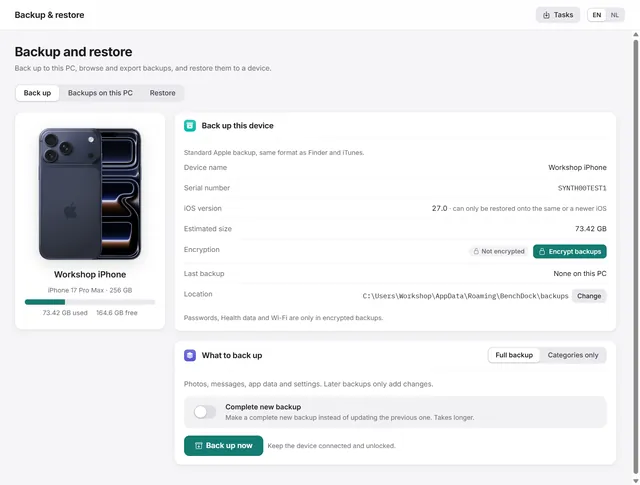
How to back up an iPhone on Windows, encrypted or not
Apple-format backups with or without encryption, every backup on the PC in one list, and restoring to a device. Pro -
 Device
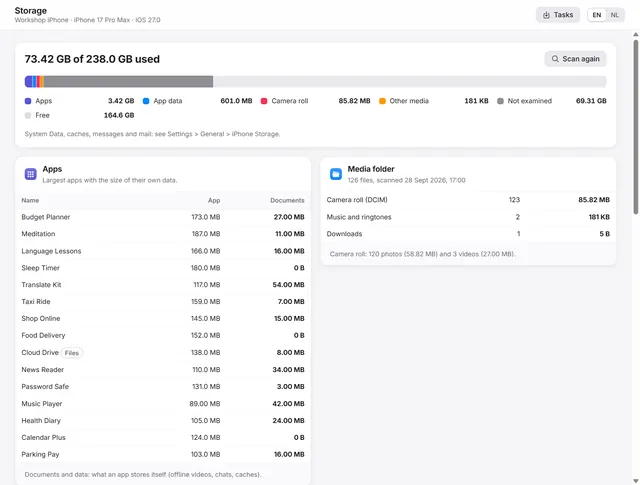
iPhone storage full? Find out what uses the space
Where the space goes: apps and their data, the camera roll, the largest files, the areas in a backup and duplicate exports on the PC. Pro -
 Backups and data
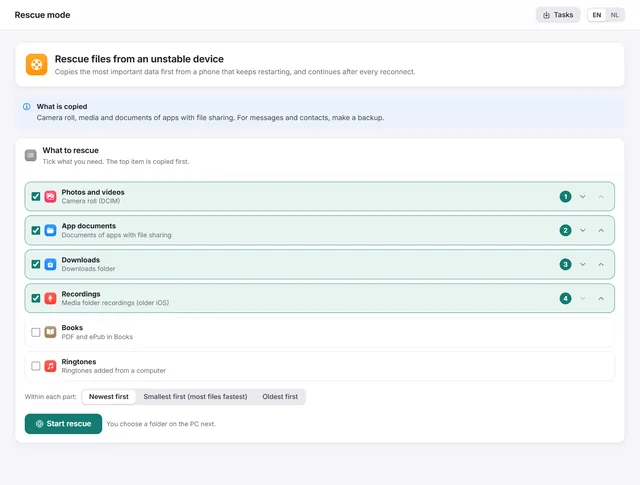
How to get photos off an iPhone that keeps restarting
Copies the most important files first from a phone that keeps restarting, and continues by itself after every reconnect. Pro -
 Backups and data
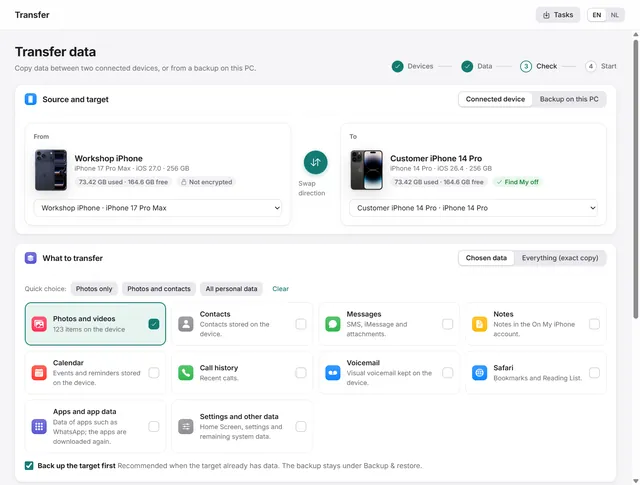
How to transfer data from one iPhone to another
From one iPhone or iPad to another, or from a backup: everything, or only chosen categories such as photos and contacts. Pro