
Flash and firmwareFree
How to put an iPhone or iPad in recovery mode or DFU mode
Recovery mode and DFU mode let a computer reinstall iOS on a phone that no longer starts. You reach both modes with a combination of buttons while the phone is connected. BenchDock shows the steps for each model and can time them for you, then tells you which mode the phone actually reached.
Recovery mode or DFU mode
Recovery mode is the first choice. The phone starts its boot loader and waits for a computer. You can update iOS with the data kept or do a clean install. On the screen you see the recovery screen: a computer and a cable.
DFU mode (Device Firmware Update) goes one step further and skips the boot loader. Use it when recovery mode does not work or the restore keeps failing from recovery. The screen stays completely black in DFU mode, which makes it easy to mistake for a phone that is off. From DFU mode only a clean install is possible, so all data on the phone is erased.
| Recovery mode | DFU mode | |
|---|---|---|
| Screen | Recovery screen with a computer and a cable | Black |
| Update with data kept | Yes | No |
| Clean install | Yes | Yes |
| When | iOS does not start, stuck on the Apple logo, a failed update | Recovery mode does not work or the restore keeps failing |
Button steps per model
Connect the device to the PC with a USB cable before you start. Press the buttons firmly; a quick press means press and release at once.
iPhone 8 and later, iPhone SE (2nd and 3rd generation)
Recovery mode:
- Press and quickly release Volume Up.
- Press and quickly release Volume Down.
- Press and hold the Side button. Keep holding through the Apple logo until the recovery screen appears.
DFU mode:
- Press and quickly release Volume Up, then Volume Down.
- Press and hold the Side button until the screen turns black.
- Keep holding the Side button and also hold Volume Down for 5 seconds.
- Release the Side button and keep holding Volume Down for 10 seconds.
- The screen stays black. If a logo or the recovery screen appears, start again.
iPhone 7 and 7 Plus, iPod touch (7th generation)
Recovery mode: press and hold the Side (or Top) button and Volume Down together until the recovery screen appears.
DFU mode:
- Hold the Side button and Volume Down together for 8 seconds.
- Release the Side button and keep holding Volume Down for 5 seconds.
- The screen stays black.
iPhone 6s and earlier, iPhone SE (1st generation)
Recovery mode: press and hold the Home button and the Side (or Top) button together until the recovery screen appears.
DFU mode:
- Hold the Home button and the Side (or Top) button for 8 seconds.
- Release the Side (or Top) button and keep holding Home for 5 seconds.
- The screen stays black.
iPad without Home button
Recovery mode:
- Press and release the volume button nearest the Top button.
- Press and release the volume button farthest from the Top button.
- Press and hold the Top button until the recovery screen appears.
DFU mode:
- Press and release the volume button nearest the Top button, then the one farthest from it.
- Hold the Top button until the screen turns black.
- Keep holding Top and also hold the volume button farthest from Top for 5 seconds.
- Release Top and keep holding the volume button for 10 seconds.
iPad with Home button
Recovery mode: press and hold the Home button and the Top button together until the recovery screen appears.
DFU mode:
- Hold Home and Top for 8 seconds.
- Release Top and keep holding Home for 5 seconds.
- The screen stays black.
Use the guide in BenchDock
The DFU timing is where most attempts go wrong: a few seconds too long and the phone lands in recovery mode instead. The guide counts the seconds and watches for the phone.
- Click Flash & firmware in the sidebar and open the tab Recovery and DFU guide.
- Choose Recovery mode or DFU mode at the top right of the card.
- Under Device, check the device type. BenchDock chooses it from the phone selected in the sidebar.
- Under Devices, choose the phone you are working on. The list contains phones connected in normal mode and phones already in recovery mode.
- Click Start and follow the highlighted step. The picture on the right shows which buttons to press.
For DFU mode the guide runs the timed steps by itself. When the screen turns black, click Screen is black — continue; the guide then counts down the 5 and 10 seconds. For recovery mode, click Next step after each step.
The guide only watches; it sends nothing to the phone. When the phone appears in the chosen mode, BenchDock shows Selected device detected in the requested mode. Release the buttons. You can then go to the Flash tab and restore the phone.
When the guide reports a problem
| Message | What it means |
|---|---|
| Recovery was detected instead of DFU | The buttons were probably held too long. Release them and try again. |
| DFU was not detected | The phone did not appear in DFU mode within the time. Release the buttons and try again. |
DFU timing sometimes needs a second or third try. That is normal and not a sign of a fault.
A phone that does not start at all
The Devices list needs the phone to be visible, either in normal mode or in recovery mode. If a phone does not start and does not appear, first follow the recovery steps above; the step list is visible without clicking Start. Once the phone is in recovery mode, it appears in the list and you can use the timed DFU guide.
Leave recovery mode or DFU mode
- Recovery mode: the Flash tab shows a notice for every phone in recovery mode, with the button Exit recovery mode. The phone then restarts normally without installing anything. This helps when an interrupted update left the phone in recovery while iOS is still intact.
- DFU mode: force restart the phone. On an iPhone 8 or later, press and release Volume Up, press and release Volume Down, then hold the Side button until the Apple logo appears. On an iPhone 7, hold the Side button and Volume Down. On an iPhone 6s or earlier, hold the Home button and the Side (or Top) button.
If the recovery screen comes back after a restart, iOS needs to be reinstalled. Start with an update that keeps the data.
Questions
Does BenchDock put the phone in recovery mode by itself?
No. You use the buttons, and BenchDock recognises the mode automatically. Leaving recovery mode is done by BenchDock with Exit recovery mode.
Windows does not see the phone in recovery or DFU mode
Check the cable and plug it directly into the PC. Then open Drivers: Windows needs Apple's USB driver to see a phone in these modes.
Is DFU mode dangerous?
DFU mode itself changes nothing on the phone. The restore that follows erases the data, because from DFU mode only a clean install is possible.
Related guides
-
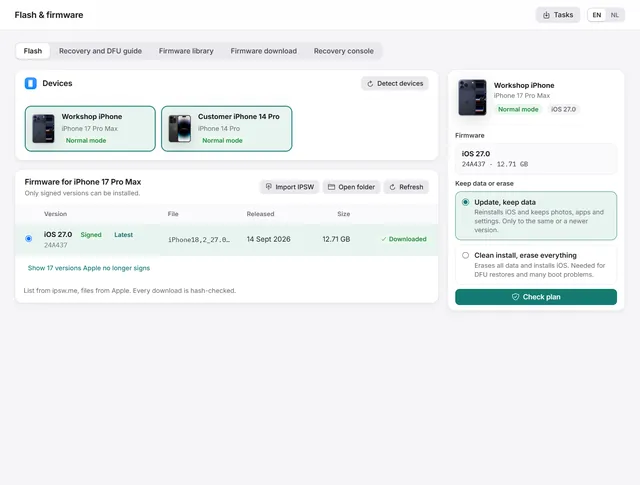 Flash and firmware
How to restore or update an iPhone on Windows
Update iOS with the data kept, or do a clean install with signed firmware from Apple. Works from normal, recovery and DFU mode. Free -
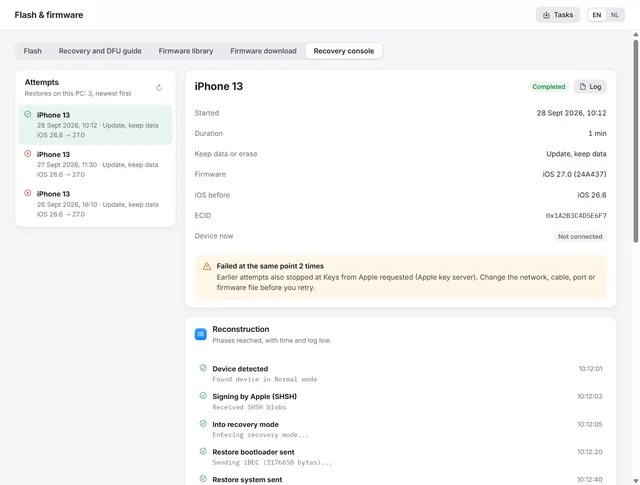 Flash and firmware
iPhone restore failed? Restore error codes and the recovery console
Where a failed restore stopped, what the error code means and what to change before the next attempt. Free -
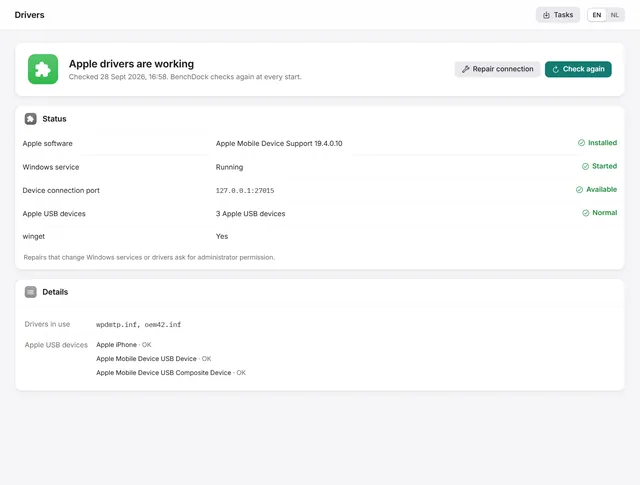 Getting started
iPhone not detected on Windows? Check and repair the Apple drivers
What to do when Windows does not see the iPhone: BenchDock checks the Apple drivers and the connection service and repairs them. Free -
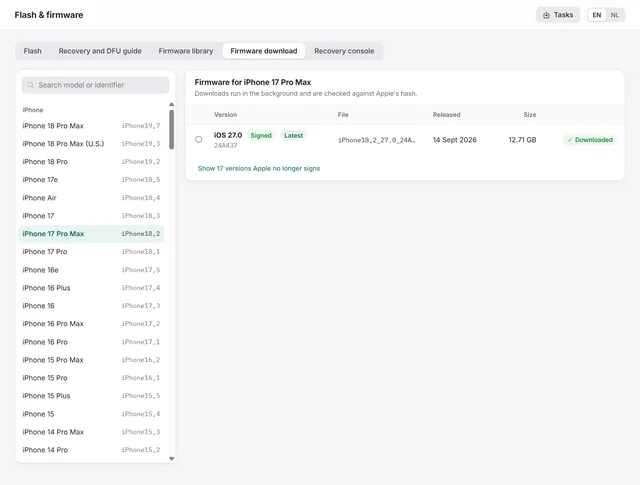 Flash and firmware
How to download iPhone and iPad firmware (IPSW) on Windows
Signed IPSW files for any iPhone or iPad, downloaded from Apple and hash-checked, plus the library of firmware on your PC. Free