
Flash and firmwareFree
iPhone restore failed? Restore error codes and the recovery console
A failed restore leaves two questions: where did it stop, and why. BenchDock keeps a log of every restore it runs and rebuilds each attempt in the Recovery console. Error codes from BenchDock, Finder, iTunes, Apple Devices or 3uTools can be looked up in the knowledge base, which explains 73 codes with the cause and what to check.
Open the recovery console
- Click Flash & firmware in the sidebar.
- Open the tab Recovery console. The list on the left shows every restore run on this PC, newest first, with the model, date, restore type and iOS versions.
- Click an attempt. A green dot means Completed, red means Failed, orange means Interrupted.
What the console shows
Summary. When the attempt started and how long it took, update or clean install, the firmware, the iOS version before the restore, the chip ID (ECID) and the mode the device is in now: connected in normal mode, in recovery mode, in DFU mode, in restore mode or not connected.
What went wrong and what to do. For a failed attempt, BenchDock names the cause it found in the log and the next step:
| Cause | What BenchDock advises |
|---|---|
| Apple key server | The file system transfer failed after a key request to Apple. After an update: retry with Update and do not erase. After a clean install: check the connection to Apple and try again. |
| Signing (TSS) | Apple did not sign the installation. Check that the version is still signed. |
| Network | The connection to Apple failed. Try another network. |
| USB connection | Communication with the device failed. Check the cable and port. |
| Unknown | See the log for the cause. |
After a failed update, the advice always keeps the data in mind: the data may still be on the phone, so retry with Update and do not erase.
Failed at the same point. If earlier attempts on the same device stopped at the same step, the console says so, for example Failed at the same point 3 times. Retrying with the same setup rarely helps then. Change the network, the cable, the USB port or the firmware file first.
Reconstruction. Every phase of the restore in order, with the time and the log line where it happened:
- Device detected
- Signing by Apple (SHSH)
- Into recovery mode
- Restore bootloader sent
- Restore system sent
- Device in restore mode
- Storage prepared
- Boot firmware written
- Keys from Apple requested
- iOS system being sent
- System verified
- Modem firmware
- Component firmware
- Final steps
- Restore finished
Below the phases you see the last phase reached, the last completed checkpoint of the restore process on the phone (with the number of completed checkpoints and any failed one), and the last communication with the device. That last line tells you whether the phone was still talking to the PC when it went wrong.
Error codes in this log. Numeric codes found in the log, each with its meaning and steps. BenchDock's restore tool rarely prints a number; the category above is then the best clue.
Relevant error lines and Attempts on this device complete the picture: the raw error lines, and all restores of the same device side by side with the phase and checkpoint where each one ended. Log opens the complete log file.
Read the reconstruction
Where an attempt stops says a lot about the cause:
- Around signing by Apple: a network problem, or the version is no longer signed. Check the plan again; BenchDock tests Apple's servers before it starts.
- While sending the restore bootloader or system: usually the USB connection. Use an original cable directly in the PC and another port.
- At the key request or while the iOS system is sent: often the network. Some networks drop IPv6 connections to Apple's key server; see how to turn off IPv6.
- Later, while storage or modem firmware is written, and again at the same point with a good cable and network: suspect the hardware. In workshop experience that is often the storage (NAND) or the baseband.
Restore error codes
Apple groups the error codes of Finder, iTunes and Apple Devices by cause. BenchDock uses the same groups. The table lists the codes in BenchDock's knowledge base.
| Codes | Meaning | What to do |
|---|---|---|
| 9, 4005, 4013, 4014 | The device disconnected during the update or restore | Use an original cable directly in the PC. Retry with Update before you try a clean install. Try another port and another computer. |
| 17, 1109, 1638, 1639, 3000, 3002, 3004, 3013, 3014, 3015, 3194, 3200 | The computer cannot reach Apple's servers | Check the internet connection, turn off VPN, proxy and security software, check the hosts file for Apple entries. BenchDock only offers signed versions, so with BenchDock these codes point to the network. |
| 2, 4, 6, 1611 | Security software blocks the connection | Update or temporarily turn off antivirus and firewall software, then check the USB connection. |
| 13, 1600–1604, 1611, 1643–1650, 2000, 2001, 2002, 2005, 2006, 2009 | USB connection problem | Use the original cable or another Apple-certified cable, another USB port (not on a keyboard or hub), or another computer. |
| 1, 3, 11, 12, 13, 16, 20, 21, 23, 26–29, 34–37, 40, 56, 1002, 1004, 1011, 1012, 1014, 1667, 1669 | Possible hardware problem | Check the security software and make sure cable, computer and network are reliable. If the error comes back, the device may need a hardware repair. |
| 10 | The iOS on the device is newer than the software on the computer | Update Windows, Apple Devices or iTunes, and BenchDock. |
| 14 | Low storage on a device with iOS 13 | Restart the device if it stays on the Apple logo, then update with data kept to the signed version. |
| 53 | The Touch ID check failed | Try an update first. If Touch ID already failed before the error, the sensor needs service. |
| 1015 | The required resource can't be found: a downgrade, or a modified (jailbroken) system | Install the latest signed version from recovery mode. |
| 1671 | The computer is still downloading software | Wait until the download is complete, then try again. |
| 4037 | The device is locked with a passcode | Unlock the device and keep it unlocked during the update. |
Apple's article on network errors also names the ranges 3000–3020 and 3100–3999 as network-related.
Workshop experience
Besides Apple's groups, the knowledge base shows hints from repair practice, marked Workshop experience. They are not confirmed by Apple:
- 9, 4013, 4014: keeps failing at the same point with a good cable and another port? Measure the NAND and its supply. NAND work means data loss.
- 40: storage (NAND) or logic board.
- 29: battery. Test with a known-good battery charged above 30 %.
- 1: baseband. Check for liquid or drop damage near the modem.
- 53: a replaced Touch ID sensor cannot pair with the board. Reconnect the original sensor and check the home button flex.
- 1110: hardware.
Look up a code
- Click Knowledge base in the sidebar.
- Type the number in the search field at the top. The table Restore and update error codes shows the meaning, whether hardware is likely and whether the customer's data is at risk.
More about the knowledge base: Knowledge base.
Before the next attempt
- Read the cause in the console and change one thing: the cable, the USB port, the network or the firmware file.
- Check the drivers if the phone disconnected.
- After a failed update, retry with Update. Only choose a clean install when the data is not needed or no update succeeds.
- If the phone is stuck in recovery mode while iOS is intact, try Exit recovery mode on the Flash tab first.
Related guides
-
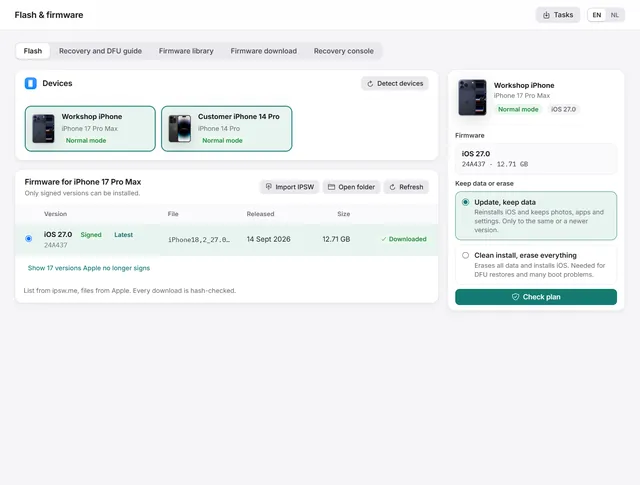 Flash and firmware
How to restore or update an iPhone on Windows
Update iOS with the data kept, or do a clean install with signed firmware from Apple. Works from normal, recovery and DFU mode. Free -
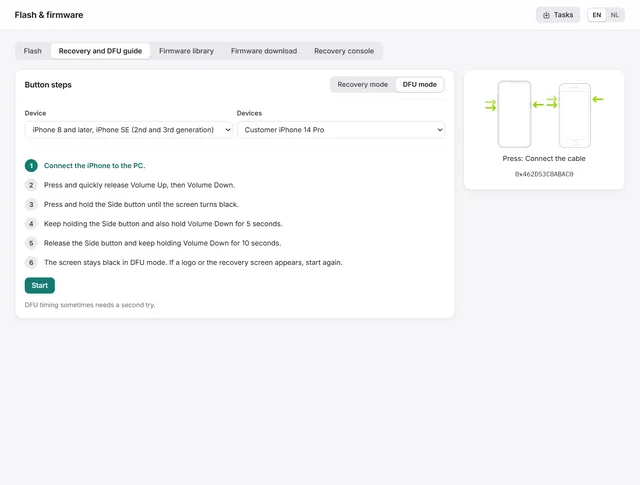 Flash and firmware
How to put an iPhone or iPad in recovery mode or DFU mode
The button steps for every iPhone and iPad, and the guide in BenchDock that times the steps and checks which mode the device reaches. Free -
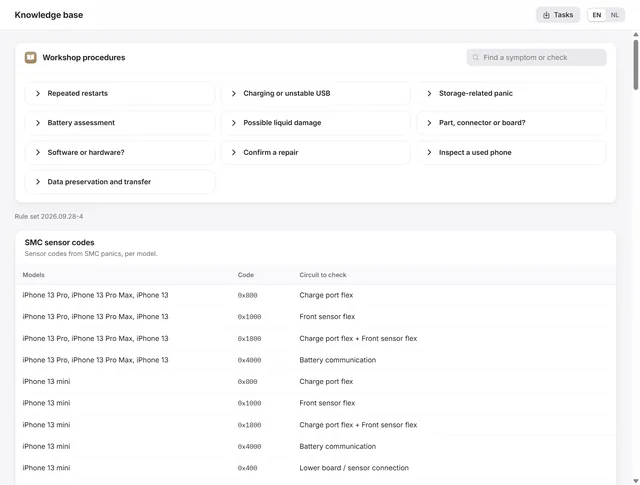 Panic analysis
The knowledge base: SMC codes, panic signatures and restore errors
SMC sensor codes per model, panic signatures with the part to test first, restore error codes and ten workshop procedures. Free -
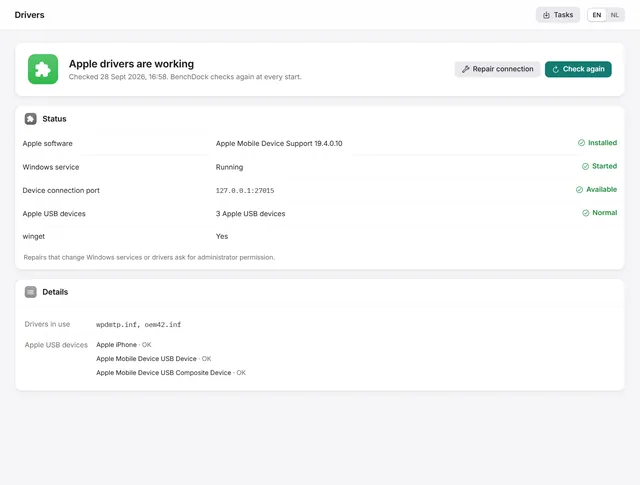 Getting started
iPhone not detected on Windows? Check and repair the Apple drivers
What to do when Windows does not see the iPhone: BenchDock checks the Apple drivers and the connection service and repairs them. Free