
Flash and firmwareFree
How to restore or update an iPhone on Windows
BenchDock reinstalls iOS on an iPhone or iPad from a Windows PC. You choose between an update that keeps the photos, apps and settings, and a clean install that erases everything. BenchDock only installs firmware that Apple still signs, downloads it from Apple and checks every file before it is used. Flashing is part of the free plan.
Update or clean install
The choice depends on what the customer needs and on the state of the phone.
| Update, keep data | Clean install, erase everything | |
|---|---|---|
| What it does | Reinstalls iOS and keeps photos, apps and settings | Erases all data and installs iOS |
| Typical use | The phone hangs on the Apple logo, restarts during start-up, or an update stopped halfway | Boot loops that an update does not solve, a phone that goes to a new owner, restores from DFU mode |
| iOS version | The same or a newer version | Any version Apple still signs for that model |
| From DFU mode | Not possible | Possible |
Start with an update whenever the data matters. If an update fails, the data may still be on the phone. For that device BenchDock then only offers another update, so nobody erases it by mistake.
Before you start
- A Windows 10 or 11 PC with an internet connection. During every restore, Apple's servers sign the installation for that one device.
- Free space on the PC of about one and a half times the size of the firmware file.
- A good USB cable, plugged directly into the PC. Hubs and adapters are a common cause of failed restores.
- Working Apple drivers. If Windows does not see the phone, follow iPhone not detected on Windows first.
- A battery charge of at least 30 %. BenchDock warns you when it is lower.
- For a clean install: if Find My is on, the owner's Apple Account is needed to activate the phone afterwards.
- If the phone still starts, make a backup first. An update keeps the data, but a backup is the only guarantee.
Step 1: Connect the device and open Flash & firmware
- Connect the iPhone or iPad to the PC.
- If the phone starts normally, unlock it and tap Trust when it asks whether to trust this computer.
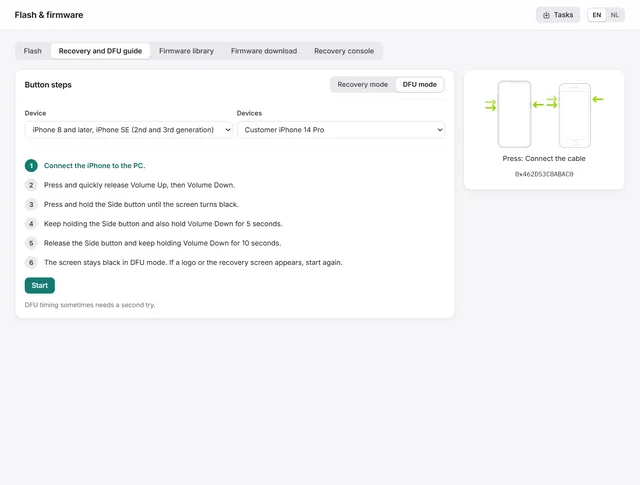
- If the phone does not start, put it in recovery mode with the buttons. The steps for each model are in Recovery mode and DFU mode.
- Click Flash & firmware in the sidebar. The Flash tab lists every connected device with its mode: Normal mode, Recovery mode or DFU mode.
- Click the device you want to restore. Its model, mode and iOS version appear in the panel on the right.
A device in recovery or DFU mode is found automatically, also when it has no working iOS. If a device does not appear, click Detect devices.
Step 2: Download or import the firmware
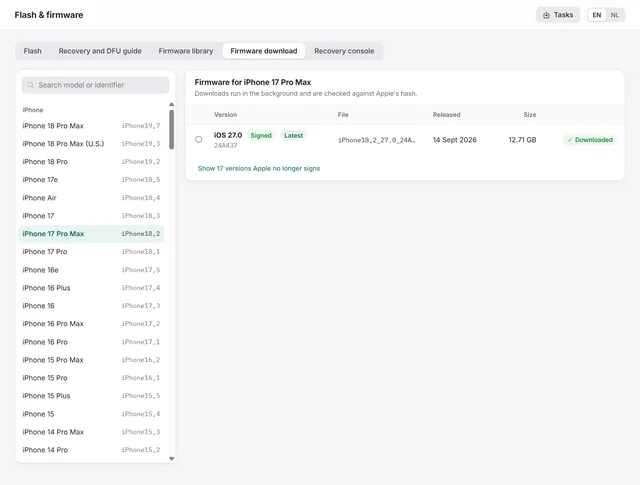
Under Firmware for (the model name) BenchDock lists the iOS versions for that model. Versions that Apple signs carry the label Signed, and the newest one also Latest. Only signed versions can be installed. Older versions are hidden behind Show … versions Apple no longer signs; they are there for reference.
- Click Download next to the signed version. The download runs in the background, so you can keep working. Progress shows in the list and under Tasks at the top right.
- When the download is complete, BenchDock checks the file against Apple's hash. The row then shows Downloaded.
- Already have the IPSW file, for example from another PC? Click Import IPSW and choose the file. BenchDock copies it into the firmware library.
- Select the version with the round button at the start of the row. It appears under Firmware in the panel on the right.
The list comes from ipsw.me and the files come straight from Apple. More about files, storage and older versions: Download iPhone firmware.
Step 3: Choose the restore type and check the plan
- Under Keep data or erase, choose Update, keep data or Clean install, erase everything.
- Click Check plan.
BenchDock checks the plan before anything is sent to the phone. Red messages are blockers: the restore cannot start until they are solved.
| Blocker | What to do |
|---|---|
| Apple no longer signs this version | Download the version marked Signed. |
| The file is not made for this model | Choose the firmware for the model shown in the panel. |
| iOS … to … is a downgrade | An update can only go to the same or a newer version. |
| An update cannot start in DFU mode | Put the phone in recovery mode instead, or choose a clean install if the data is not needed. |
| Not enough free space on this PC | Free up disk space, or move the firmware folder to another drive in Settings. |
| Apple restore servers not reachable | Try another network, turn off VPN or proxy software, or try again later. |
| IPv6 connections to Apple fail on this network | Use another network or turn off IPv6 on the network adapter (see below), then check again. |
Warnings do not stop the restore. They remind you to make a backup, point out a battery below 30 % and, for a clean install, that the owner's Apple Account is needed when Find My is on.
Step 4: Start the restore
- Update: click Start update.
- Clean install: type
ERASEin the confirmation field and click Erase and restore.
A running restore cannot be stopped. Keep the cable connected and leave the phone alone. While it changes mode, the phone restarts several times and can briefly disappear from Windows; that is normal. The progress panel shows the step in progress, the percentage the restore tool reports for that step, the elapsed time and every phase reached. Recent log lines shows the raw output, and Log opens the complete log file.
When the panel shows Restore finished:
- After an update, the phone starts with its data. Unlock it and let it finish setting up.
- After a clean install, set up the phone on Wi-Fi. With Find My on, the owner's Apple Account is needed.
If the restore fails
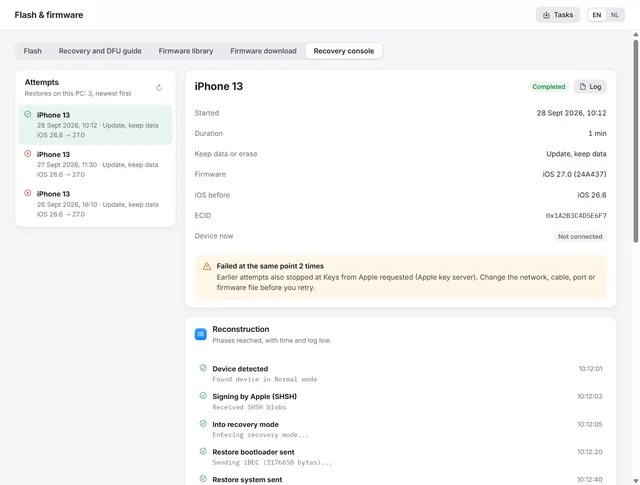
The progress panel explains what went wrong and what to do next. The Recovery console tab reconstructs the attempt: the phases it reached, the last completed step, the last contact with the phone and any error codes. See Restore errors and the recovery console.
After a failed update, BenchDock only offers Prepare another update for that device. Retry the update first: change the cable or USB port, check the network, and restore again with the same signed version.
Turn off IPv6 for the network adapter
Some networks drop IPv6 connections to Apple's key server. The restore then fails halfway, so BenchDock checks this before it starts. To turn IPv6 off on the PC:
- Press Windows + R, type
ncpa.cpland press Enter. - Right-click the network adapter you use and choose Properties.
- Clear Internet Protocol Version 6 (TCP/IPv6) and click OK.
- In BenchDock, click Check plan again.
Turn IPv6 back on the same way when the restore is done.
The phone is stuck in recovery mode
If a device sits in recovery mode while iOS itself is intact, for example after an interrupted update, the Flash tab shows a notice with Exit recovery mode. That button restarts the phone normally without installing anything. If the recovery screen comes back, restore with an update.
Questions
Can I downgrade iOS?
Only to a version that Apple still signs for that model. The firmware list shows which versions those are. An update with data kept can only go to the same or a newer version.
Does a restore remove Activation Lock?
No. After a clean install, a phone with Find My on asks for the Apple Account of the owner. Only the owner can remove Activation Lock.
Where are the firmware files stored?
In the firmware folder, by default %APPDATA%\BenchDock\firmware. You can choose another folder in Settings. The Firmware library tab shows every file, which models it fits and whether it can update, erase or both. Delete files there that you no longer need.
Do I need iTunes or the Apple Devices app?
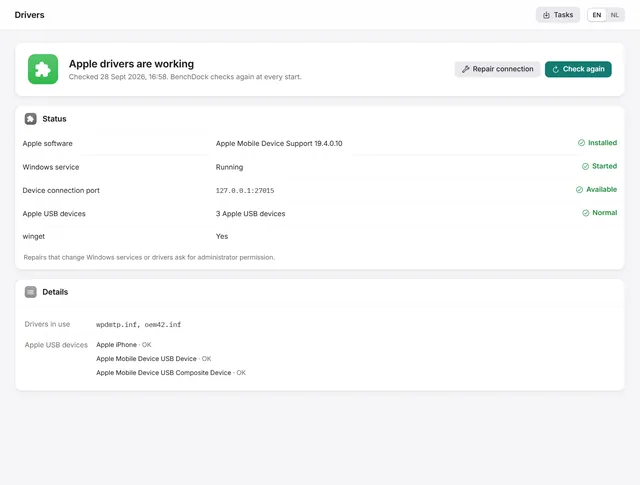
BenchDock does the restore itself. Windows does need Apple's USB drivers to talk to the phone. The Drivers page checks them and installs or repairs them.
How long does it take?
The download depends on your connection: the firmware for an iPhone 17 Pro Max with iOS 27.0 is 12.7 GB. An update from iOS 26.5.2 to 27.0 on an iPhone 13 took nine minutes once the file was on the PC.
Related guides
-
 Flash and firmware
How to put an iPhone or iPad in recovery mode or DFU mode
The button steps for every iPhone and iPad, and the guide in BenchDock that times the steps and checks which mode the device reaches. Free -
 Flash and firmware
iPhone restore failed? Restore error codes and the recovery console
Where a failed restore stopped, what the error code means and what to change before the next attempt. Free -
 Flash and firmware
How to download iPhone and iPad firmware (IPSW) on Windows
Signed IPSW files for any iPhone or iPad, downloaded from Apple and hash-checked, plus the library of firmware on your PC. Free -
 Getting started
iPhone not detected on Windows? Check and repair the Apple drivers
What to do when Windows does not see the iPhone: BenchDock checks the Apple drivers and the connection service and repairs them. Free