
DevicePro
How to check a used iPhone before you buy it
Before you buy a phone from a customer, or before you sell one, you want to know whether it is locked to someone else, managed by a company, and in what state the battery and the parts are. The verification report reads all of this from the phone in one go, adds the tests you do by hand and saves the result as a PDF. It is part of Pro.
Make the report
- Connect the iPhone, unlock it and tap Trust.
- Click Verification in the sidebar. BenchDock reads the phone; that takes a few seconds.
- Check the score and the items that need attention.
- Do the function tests on the tab Function tests if you want them in the report.
- Click Save report to keep it, and Save as PDF for the customer or your records.
The score
The card on the left shows a score out of 100 with a headline such as No issues found or 2 items need attention. The score drops for every item that needs attention. Below it, BenchDock says how many items could be checked, for example 20 of 29 items could be checked. Items the phone does not return stay Unknown.
Read again reads the phone again, for example after the seller turned off Find My.
What the report checks
Ownership and management
| Item | Normal | Needs attention |
|---|---|---|
| Activation | Activated | Any other state |
| Find My | Off | On: the phone is linked to an Apple Account |
| Supervision (MDM) | No | Supervised by an organisation, shown with its name |
| Configuration profiles | None | One or more profiles, listed by name |
| Passcode set | Shown for information | |
| Developer mode | Off | On |
With Find My on, the phone has Activation Lock: after a reset it asks for the owner's Apple Account. Have the owner turn off Find My before you pay, and check it on the phone under Settings → (name) → Find My.
Battery
| Item | Needs attention when |
|---|---|
| Battery health | Below 80 % |
| Charge cycles | 1000 or more |
| Charging | The phone reports that it is not charging while connected |
Components
BenchDock compares the serial number the battery reports now with the factory record, where the phone returns both: Matches factory record or Differs from factory record. From iOS 17.4, the factory records of the other parts are no longer available over USB. They show as Not comparable; check them on the phone under Settings → General → About → Parts and Service History.
Identity and storage
Model, capacity, model number, sales region, regulatory model, serial number, IMEI, logic board serial, Wi-Fi and Bluetooth address. Under Storage, a phone with less than 2 GB free needs attention: updates and backups need space.
Function tests
The tab Function tests lists sixteen checks you do by hand, each with a short instruction:
- Display quality, touchscreen and Face ID or Touch ID.
- Front camera, rear cameras and flash, microphones, receiver and loudspeaker.
- Buttons and vibration, USB port and wired charging, wireless charging.
- Wi-Fi, Bluetooth, mobile network, proximity and orientation.
- Housing and connectors, liquid damage indicators.
Mark each one Passed, Issue found or Skip. The answers are saved with the report. For Face ID and charging, the Face ID check and the charging test in the Toolbox give you measured values.
Saved reports
The tab Saved reports lists every saved report with the model, serial number, date and result: No blocking issues, Attention needed, Blocked: resolve before purchase or Not checked. Export saves a report as text.
Before you pay
A few things only the phone itself can show. The report reminds you of the first three:
- Activation Lock: Find My must be off. Have the owner show you that it is off before you pay.
- Carrier lock: check Network Provider Lock under Settings → General → About, and make a call with the SIM the buyer will use.
- Parts and Service History: check which parts were replaced and whether they are genuine.
- Panic logs: a phone that restarts by itself leaves panic logs. Read them before you buy.
Questions
Does the report show whether a phone is blacklisted or reported stolen?
No. BenchDock reads the phone itself and checks nothing online. Check the IMEI with the carrier or an IMEI service.
Can I hide the serial number on the PDF?
Yes. Click Hide serials at the top of the page before you save the PDF. Serial numbers, IMEI numbers and addresses are then masked.
Related guides
-
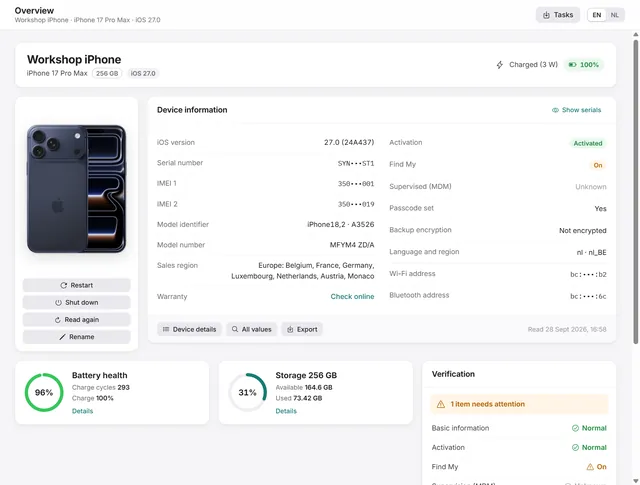 Device
Device overview: serial number, IMEI, battery health and storage of an iPhone
Identity, activation, Find My, battery health, charge cycles and storage at a glance, with every value the phone returns. Free and Pro -
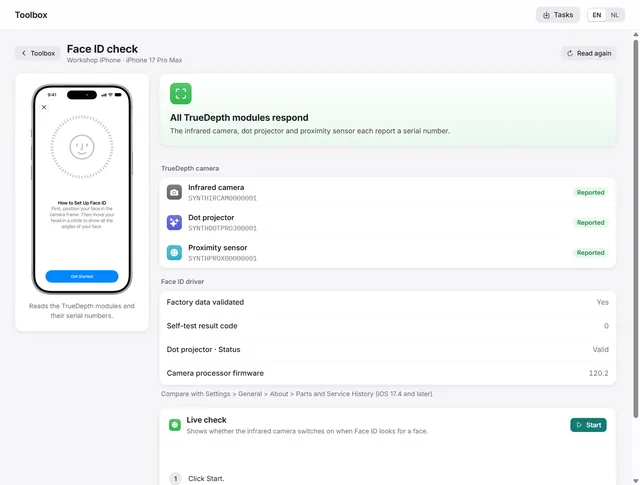 Workshop tools
How to check Face ID after a screen repair
Which TrueDepth module still responds, with the serial numbers the modules report, and a live test of the infrared camera. Pro -
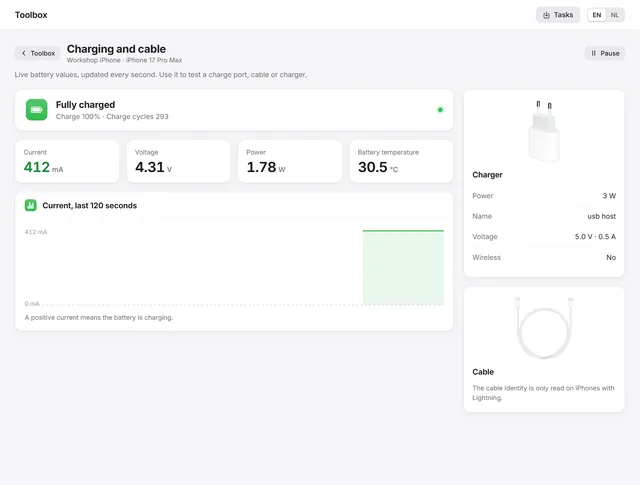 Workshop tools
How to test an iPhone charging port and cable
Live current, voltage and power every second, the power source and the cable the phone reports, and the codes for not or slow charging. Pro -
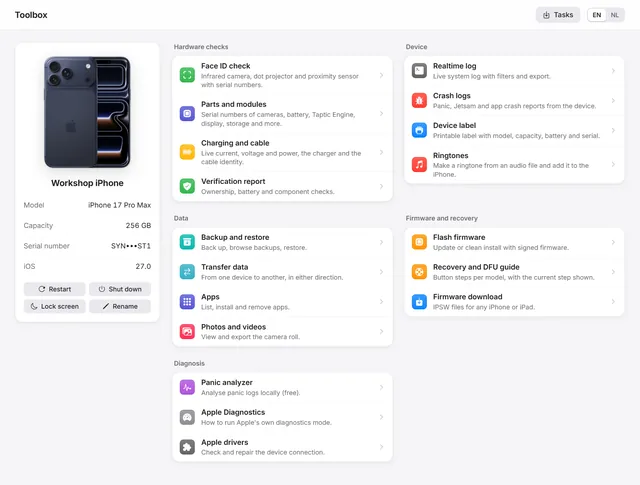 Workshop tools
The Toolbox: parts, realtime log, crash logs and device label
Parts and serial numbers, the realtime log, crash logs, a printable device label, Apple Diagnostics and restart, shut down and rename. Free and Pro