
Workshop toolsPro
How to test an iPhone charging port and cable
A phone that charges slowly, stops charging or only charges at an angle: is it the port, the cable or the battery? The Charging and cable tool reads what the phone itself measures, every second, and shows which power source and cable it sees. The tool is part of Pro.
Start the test
- Connect the iPhone to the PC, unlock it and tap Trust.
- Click Toolbox in the sidebar and choose Charging and cable, or click it under Quick tools on the Overview.
- The values update every second. Pause stops the updates; Resume continues.
The live values
| Value | Meaning |
|---|---|
| Current | In mA. Positive means the battery is charging; negative means the phone runs on its battery. |
| Voltage | The battery voltage. |
| Power | Current times voltage, in watts. |
| Battery temperature | In °C. A hot battery makes iOS slow down charging. |
| Charge | The charge level in percent. |
| Charge cycles | The number of charge cycles of the battery. |
Above the values, the state: Charging, Connected, not charging, Fully charged or On battery. The chart shows the current over the last 120 seconds, so you can see a connection that drops out.
The charger
Under Charger you see the power source the phone reports: its wattage and description, the negotiated voltage and current (for example 9 V · 2.22 A), and whether it charges wirelessly. With the phone connected to the PC only, the PC is the source.
The cable
Under Cable you see the cable in the Lightning port, if the cable identifies itself: its name, manufacturer, model and serial number. Only cables with an Apple ID chip report this, such as Apple's own cables and MFi-certified ones. A cable that does not identify itself is shown as such; that is common for cheap cables.
The cable identity is only read on iPhones with a Lightning port. On iPhones with USB-C the tool shows the other values.
Codes for not charging and slow charging
When the phone itself reports why it does not charge, or why it charges slowly, BenchDock shows the raw code: Code reported for not charging or Code reported for slow charging. The codes are only shown when they are not 0. BenchDock shows them as the phone reports them, without an interpretation.
Test a port or a cable
BenchDock reads the values over the USB cable, so the phone is connected to the PC during the test and the PC's USB port is the power source.
- Connect the phone with a cable you know is good, directly to a USB port on the PC, and note the current and the power.
- Swap to the customer's cable in the same port. A clearly lower current, or a chart that keeps dipping, points to the cable.
- With the good cable back in, move the plug gently in the phone's port while you watch the chart. Dips in the current point to the charge port or its flex.
- Watch the battery temperature. A hot battery limits the current, also with a good port and cable.
- If the current stays low with a good cable and a cool battery, look at the battery health on the Overview and at the panic logs.
Use the same USB port for every measurement, so the numbers can be compared.
Questions
Why is the current negative while the phone is connected?
The phone uses more power than the USB port delivers, for example with the screen on and a port that supplies little power. Try another port on the PC, and lock the phone while you measure.
Can I see which charger a customer uses?
The Charger section shows the power source the phone reports at that moment. During the test that is the PC's USB port, because the phone is connected to the PC.
Related guides
-
 Workshop tools
How to check Face ID after a screen repair
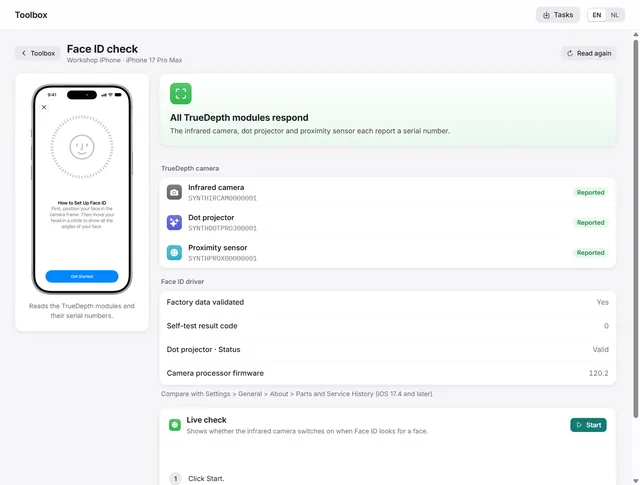
Which TrueDepth module still responds, with the serial numbers the modules report, and a live test of the infrared camera. Pro -
 Workshop tools
The Toolbox: parts, realtime log, crash logs and device label
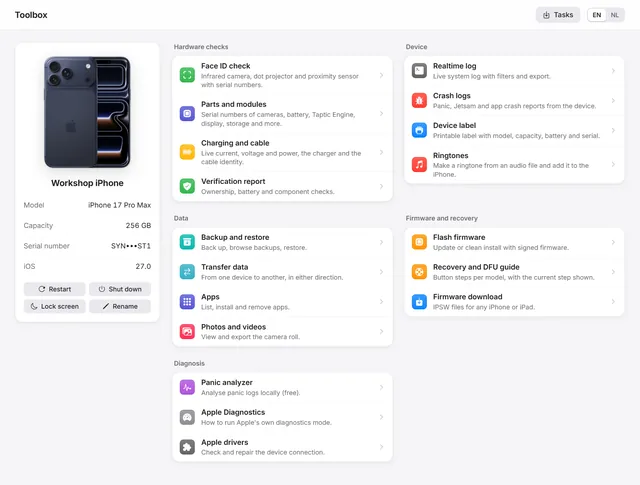
Parts and serial numbers, the realtime log, crash logs, a printable device label, Apple Diagnostics and restart, shut down and rename. Free and Pro -
 Device
Device overview: serial number, IMEI, battery health and storage of an iPhone
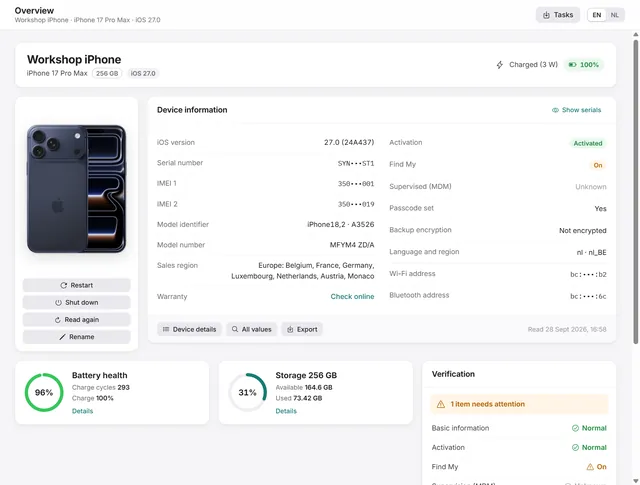
Identity, activation, Find My, battery health, charge cycles and storage at a glance, with every value the phone returns. Free and Pro -
 Panic analysis
How to read an iPhone panic log and find the faulty part
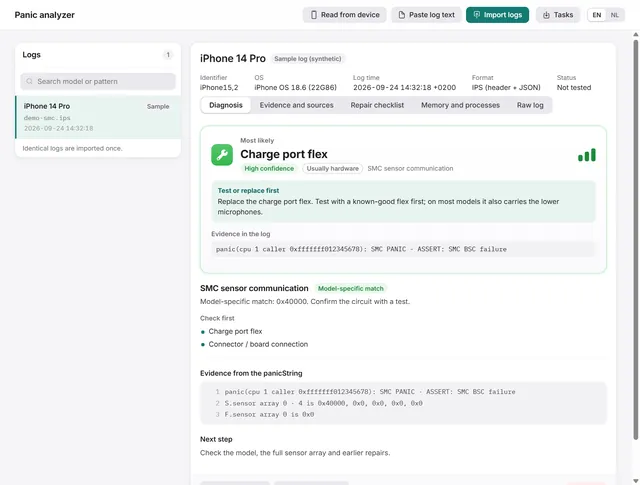
Import, paste or read a panic log over USB. BenchDock names the part to test first, with the confidence and the evidence line. Free