
Workshop toolsPro
How to check Face ID after a screen repair
"Face ID is not available" after a screen repair is one of the most common complaints at the bench. The Face ID check shows which of the three TrueDepth modules still answers, reads the serial numbers they report, and tests live whether the infrared camera switches on when Face ID looks for a face. The check is part of Pro.
Run the check
- Connect the iPhone, unlock it and tap Trust.
- Click Toolbox in the sidebar and choose Face ID check, or click Face ID check under Quick tools on the Overview.
- BenchDock reads the TrueDepth modules. Nothing is written to the phone.
The verdict
| Verdict | Meaning |
|---|---|
| All TrueDepth modules respond | The infrared camera, the dot projector and the proximity sensor each report a serial number. |
| Not every TrueDepth module responds | BenchDock names the modules that report no serial number. Check the TrueDepth connectors and test Face ID. |
| Face ID reports a value to check | All modules report a serial number, but the phone reports a value that deserves attention; see below. |
| No TrueDepth camera reported | The device has no Face ID hardware, or none that answers. |
A module that no longer reports points to its connector, its flex or the module itself.
The modules and the values
For each module you see whether it is Reported or Not reported, and the serial number it gives:
- Infrared camera
- Dot projector
- Proximity sensor
Below the modules, BenchDock shows what the Face ID driver itself reports:
- Status of the dot projector. On a working iPhone 13 it reads Valid; another value is flagged.
- Factory data validated: whether the Face ID driver has validated its factory data. false is flagged.
- The proximity sensor driver: an inactive sensor is flagged.
- Self-test result code of the Face ID driver, and the Camera processor firmware.
Compare the result with Settings > General > About > Parts and Service History on the phone (iOS 17.4 and later), which says whether the parts are genuine.
Live check of the infrared camera
The live check shows whether the infrared camera actually switches on:
- Click Start under Live check.
- Lock the iPhone with the side button.
- Wake it and look at the screen, or swipe up, so Face ID tries to unlock.
BenchDock follows the infrared camera for up to 60 seconds. It shows Infrared camera on and after how many seconds it switched on. If nothing happens, it says so; wake the screen so Face ID tries to unlock and run the check again.
After a screen or back repair
- Run the check before you open the phone, so you know the starting point.
- Run it again after the repair. A module that reported before and does not report now points to a connector or flex that was disturbed.
- Use the live check to see whether the infrared camera still switches on.
- Test Face ID itself: set up a new face under Settings > Face ID & Passcode.
Questions
Can BenchDock repair Face ID?
No. It shows which module answers and what the driver reports, so you know where to look.
Does the check work on every iPhone with Face ID?
It reads the modules the phone reports. The values were checked on an iPhone 13; other models return the same kind of data, but the exact values can differ per model.
Related guides
-
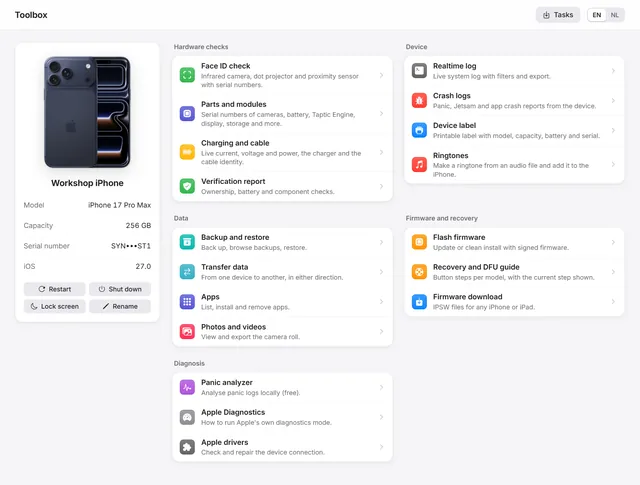 Workshop tools
The Toolbox: parts, realtime log, crash logs and device label
Parts and serial numbers, the realtime log, crash logs, a printable device label, Apple Diagnostics and restart, shut down and rename. Free and Pro -
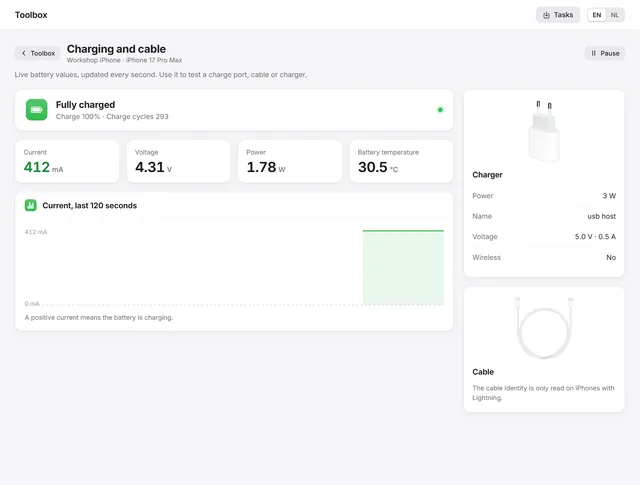 Workshop tools
How to test an iPhone charging port and cable
Live current, voltage and power every second, the power source and the cable the phone reports, and the codes for not or slow charging. Pro -
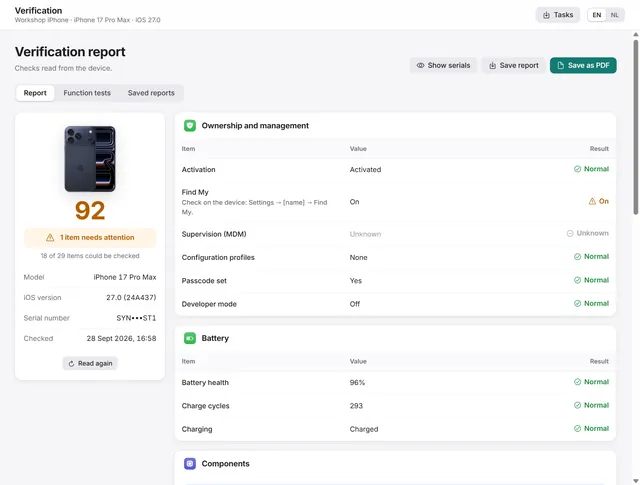 Device
How to check a used iPhone before you buy it
Activation, Find My, management, battery health and part records in one report, plus function tests, saved as PDF. Pro -
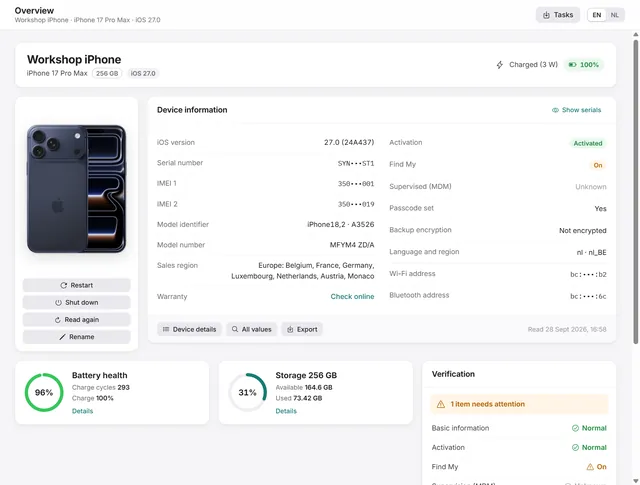 Device
Device overview: serial number, IMEI, battery health and storage of an iPhone
Identity, activation, Find My, battery health, charge cycles and storage at a glance, with every value the phone returns. Free and Pro