
DevicePro
How to mirror an iPhone or iPad screen on Windows
The Screen page shows your iPhone or iPad screen live in BenchDock on Windows. Connect over your local network, enlarge the image, save a PNG screenshot or record a WebM video. You operate the device on its own screen; BenchDock displays the picture.
What you need
- BenchDock on a Windows 10 or 11 PC (64-bit), with an active Pro licence. See Settings and licence.
- An iPhone or iPad with Screen Mirroring in Control Centre.
- The PC and device on the same local network, with communication between them allowed. A normal home Wi-Fi network is a suitable starting point. Guest networks can keep devices apart.
- Free disk space and a folder you can write to if you want to save screenshots or recordings.
This connection uses AirPlay over the network. You do not need a USB cable, an extra app on the iPhone or the USB Trust prompt. The device selector and USB device count can be empty while mirroring works. Apple driver repair concerns USB tools; it does not repair this network connection.
Screen mirroring is part of Pro (€9.99 a month, including VAT). Panic analysis and flashing remain free. See the plan comparison.
Start the connection
- Open Screen in the Device group of the BenchDock sidebar.
- Click Start mirroring. Keep this page open.
- If Windows asks about network access, allow the receiver on your trusted private network.
- On the iPhone or iPad, open Control Centre and tap Screen Mirroring, the control with two overlapping rectangles.
- Select the BenchDock name shown on the PC, for example BenchDock (Workshop). Your computer has its own name.
- When the device asks for an AirPlay code, enter the four digits displayed inside BenchDock, on the iPhone or iPad.
The code stays visible while the connection is being set up. When the first image arrives, the instructions disappear and the live screen takes their place. There is no code field to fill in on the PC. The code is not your Apple Account password or the passcode used to unlock the phone.
Apple explains where to find the device controls in Use AirPlay to stream video or mirror your screen. BenchDock supplies the receiving window on the PC; follow the name and code shown there.
View and enlarge the screen
Fit is selected initially. It scales the whole image into the available space. A portrait phone naturally leaves room on either side in a wide PC window.
Use Zoom to choose 50%, 100%, 150% or 200%. These values refer to the received image. At a large zoom level, scroll inside the image area to see the parts outside the window. Select Fit to see the whole image again. Enlarging the display does not add detail to the incoming picture.
Click Full screen to expand the viewing panel, with its controls, across the display. Use Exit full screen or press Esc to return to the normal window. Full screen does not start a recording.
Tap and swipe on the iPhone or iPad to change what is shown. Clicking the picture on the PC does not operate the phone. Keep BenchDock on the Screen page while using the connection.
Listen on your PC
Audio sent by the iPhone or iPad plays through the default Windows sound output. Start playback on the device and adjust its volume. Use the Windows speaker control to select your speakers or headphones and adjust the PC volume.
If you change the Windows output device during a session and sound stays on the old output, disconnect and start mirroring again. This selects the current default output.
Live playback and recording are separate: the WebM recorder saves the picture without audio.
Save a screenshot
- Display the image you want on the iPhone or iPad.
- Click Screenshot above the live image.
- Choose the folder and filename in the Windows save dialog, then save.
BenchDock writes a PNG file and confirms the saved filename. The file contains the received device image, without the BenchDock toolbar or sidebar. The viewing zoom does not determine the saved resolution. Cancelling the dialog saves nothing.
You can also take screenshots during a recording. The screenshot and recording buttons are separate; saving an image does not stop the video. For original photos or videos already stored on the device, use Photos and videos instead of taking a picture of the mirrored display.
Record a video
- Wait for live picture, then click Record.
- Choose a destination and filename in the save dialog. Recording starts after you confirm the file location. Cancelling this dialog does not start a recording.
- Check that the red recording dot, Recording label and running timer are visible.
- Perform the steps you want to show on your device.
- Click Stop and save. Wait for the saving message to finish and the filename confirmation to appear.
The output is WebM video without audio. BenchDock does not record the phone's sound or the PC microphone. MP4 is not an export option on this page. Open the file in a player or browser that supports WebM.
The recorder keeps the image dimensions it had at the start. If you rotate the device during a recording, the new picture fits inside those dimensions and can have borders. For a recording in another orientation, stop, rotate the device, then start a new recording.
BenchDock automatically ends a recording after two hours or when its encoded video passes 1,900 MiB (about 1.9 GiB). Start another file if you need to continue. A slow or full destination can interrupt saving; use a writable folder with enough free space and check for the saved-file confirmation.
Stop mirroring or reconnect
Click Disconnect below the picture. You can also stop from the device through Control Centre → Screen Mirroring → Stop Mirroring.
After Disconnect in BenchDock, the page shows Screen disconnected. Click Connect again, then Start mirroring, and choose BenchDock again on the device. If you stop from the device, BenchDock can return to its waiting panel; select the receiver again to reconnect. Use the code displayed for that connection if asked.
An active recording is finalised when the connection ends, when you leave the Screen page or when you close the app normally. For a deliberate finish, use Stop and save first and wait for the confirmation. A forced process exit or power loss is not the same as closing normally.
Connection problems
BenchDock is missing from Screen Mirroring
- Check that you have clicked Start mirroring and that the waiting instructions are visible.
- Check the network on both devices. A PC on another network cannot be discovered through this local connection.
- Use your regular private network instead of an isolated guest network. A router setting that separates wireless clients can prevent discovery even when the Wi-Fi name matches.
- Check whether a VPN is separating the devices from the local network. If necessary, retry on a trusted local network without that VPN connection.
- If Windows blocked the receiver, review its access for the private network in Windows Firewall. You do not need to turn off the firewall.
The start page's Connection help contains a short reminder of these network checks. Restart the receiver after resolving the network issue, then open the device's Screen Mirroring list again.
The device asks for a code or password
Look at the waiting panel in BenchDock. Use the current four-digit code there. If the device is still showing an old request, cancel it, end the old connection attempt and select BenchDock again. Confirm that you chose the same computer name as the one in the open BenchDock window.
Do not enter your Apple Account password in response to this pairing request. If no code appears, restart the receiver and repeat the connection steps above.
The picture is soft, delayed or has stopped
Try Fit or 100% first. The device supplies the image resolution, so 200% zoom can make pixels more apparent. BenchDock requests up to 1080p at 30 frames per second; that is not a guarantee of the resolution or frame rate supplied by every device and network.
Check the Wi-Fi signal and try the connection closer to the router. If the picture no longer updates, disconnect and reconnect. Test with the device's Home Screen to separate a connection problem from a problem inside one app. Some video apps do not support AirPlay, as described in Apple's AirPlay guide.
There is picture but no sound
- Start a video or music on the device; a static Settings page does not produce sound.
- Check the device's media volume and the volume of the selected Windows speakers or headphones.
- Open the Windows volume mixer and check that the receiver (UxPlay) is not muted.
- If you switched speakers or headphones, disconnect and reconnect after selecting the correct Windows output.
- If only one app is silent, try another app that supports AirPlay. The app needs to send audio to the receiver.
Saved WebM recordings are silent even when you hear sound during mirroring. The recorder captures the displayed video only.
Screenshot or Record is unavailable
These buttons become available when frames arrive. They are disabled while waiting for a device, after disconnecting and while a recording is being started or saved. If BenchDock shows an encoder error, restart the app and try a short recording. Check the destination folder and free space if saving fails.
Receiver files are missing or the receiver stops
If BenchDock reports missing or damaged receiver files, reinstall the complete BenchDock package. The receiver is included with the app. If it stops unexpectedly, start mirroring again; if that repeats, restart BenchDock and check the network steps above.
Current limits
- Viewing and capture only: no mouse or keyboard control of the iPhone or iPad.
- PNG for screenshots; WebM without audio for recordings.
- Keep the Screen page open for the session. It is not a background recording tool while you browse other pages.
- Image quality depends on the frames received. Zoom and full screen change the display size, not the source quality.
- This is a local network connection. It does not make a backup or recover the screen from a device that cannot start or accept the connection.
Your saved images and videos are written to the folder you choose on your PC. The mirroring feature does not upload them to an external service.
Related guides
-
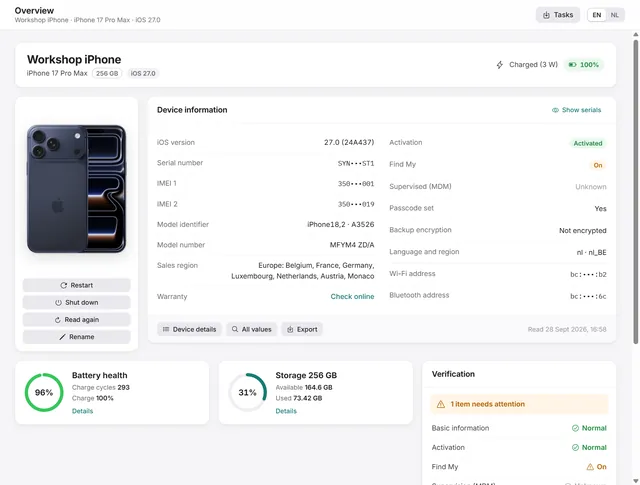 Getting started
Getting started with BenchDock
What you need, how to connect a phone and trust the computer, and how the window is laid out. Free -
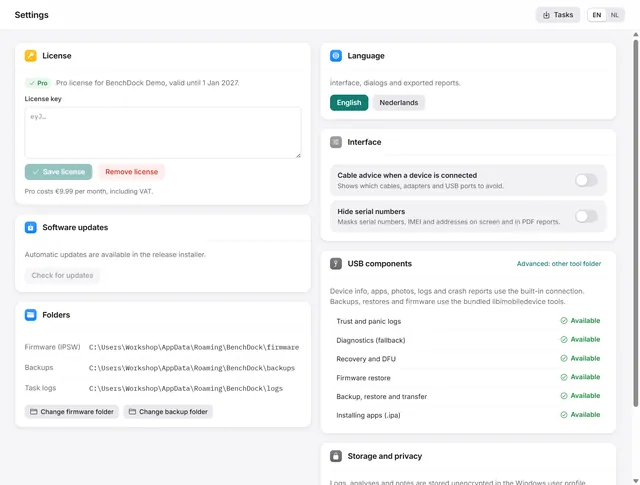 Getting started
BenchDock settings and the Pro licence
Enter or remove the Pro licence, move the firmware and backup folders, switch language and hide serial numbers in reports. Free -
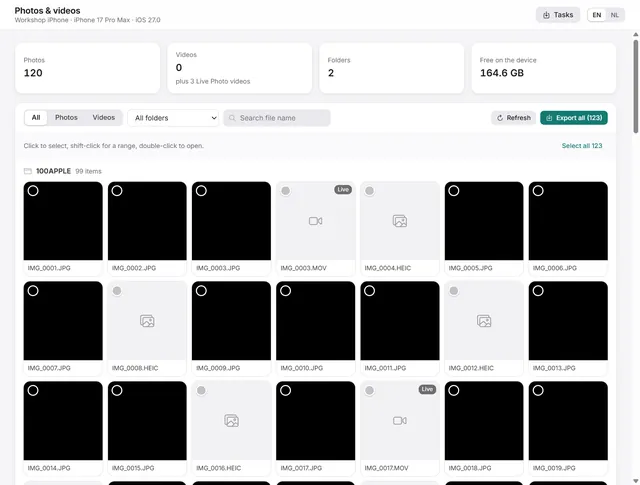 Device
How to copy photos and videos from an iPhone to a Windows PC
Browse the camera roll, view photos, play videos and export the originals to a folder on the PC. Pro -
Device
Device overview: serial number, IMEI, battery health and storage of an iPhone
Identity, activation, Find My, battery health, charge cycles and storage at a glance, with every value the phone returns. Free and Pro