
DevicePro
How to copy photos and videos from an iPhone to a Windows PC
The Photos & videos page shows the camera roll of the connected phone and copies the originals to your PC. It reads the photos straight from the phone, without a backup, and keeps them exactly as they are: HEIC stays HEIC, videos stay MOV. The page is part of Pro.
Browse the camera roll
At the top: the number of photos, the number of videos (and Live Photo videos), the number of folders and the free space on the phone.
- Choose All, Photos or Videos.
- Choose a folder in the folder list, or All folders. The camera roll is stored in folders such as
100APPLEand101APPLE. - Search on the file name, for example
IMG_4021.
Thumbnails load as you scroll, so the page also works with a library of tens of thousands of photos. Videos show Video, and the video part of a Live Photo shows Live.
View photos and play videos
Double-click a tile, or click the button in its corner, to open the viewer. It shows photos full size and plays videos with sound and a position bar. Use the arrows or Previous and Next to go through the list.
- A Live Photo shows Play Live Photo to play its short video.
- HEIC and DNG photos are converted to JPEG for display only; the original on the phone and in an export stays unchanged.
- HEVC videos play when Windows has the HEVC extension. Otherwise use Open in Windows or Save copy.
- Save copy saves the file you are looking at to a folder of your choice.
Export photos and videos
- Select what you need: click a tile to select it, shift-click another to select everything in between, or click Select all to select everything in the current view. The bar above the photos shows how many items are selected and how large they are together.
- Click Export selection, or Export all for the whole camera roll.
- Choose a folder on the PC.
BenchDock creates a new folder in it, named after the phone and the date, and keeps Apple's folders such as 100APPLE inside. The export runs as a task under Tasks, so you can keep working, and you can stop it there. At the end, benchdock-export.json records how many files were copied and which ones failed.
iCloud Photos
With Optimise iPhone Storage on, many originals are only in iCloud. Items that are stored only in iCloud do not appear on this page. To get them, choose Download and Keep Originals on the phone under Settings → Photos and wait until the originals are downloaded, or download them from iCloud.com.
Questions
Is this the same as the rescue mode?
No. This page copies from a phone that works normally. For a phone that keeps restarting or shutting down, use rescue mode: it copies file by file and continues after every reconnect.
Can I delete photos from the phone here?
No. This page reads and exports only. Delete photos on the phone itself, in the Photos app; deleting files in the camera roll folders from a computer can damage the photo library.
Can I get photos from a backup instead?
Yes. The backup browser shows the photos in a backup, with albums and favourites, and exports them.
Related guides
-
 Backups and data
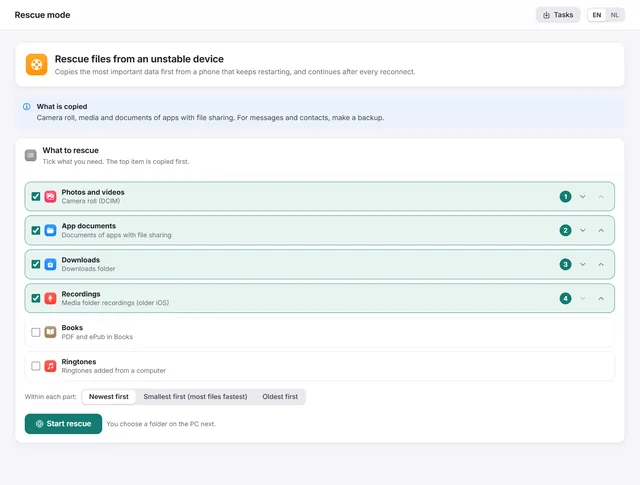
How to get photos off an iPhone that keeps restarting
Copies the most important files first from a phone that keeps restarting, and continues by itself after every reconnect. Pro -
 Backups and data
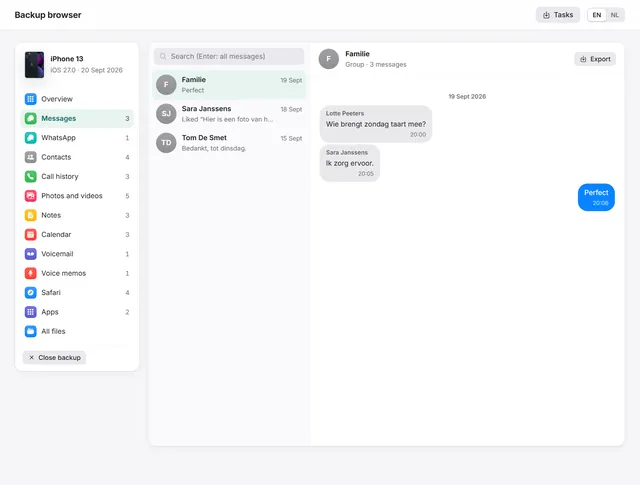
How to view WhatsApp, messages and photos in an iPhone backup on a PC
Open any iPhone backup, also encrypted, and read messages, WhatsApp, photos, contacts and notes. Export chats as PDF with pictures. Pro -
 Device
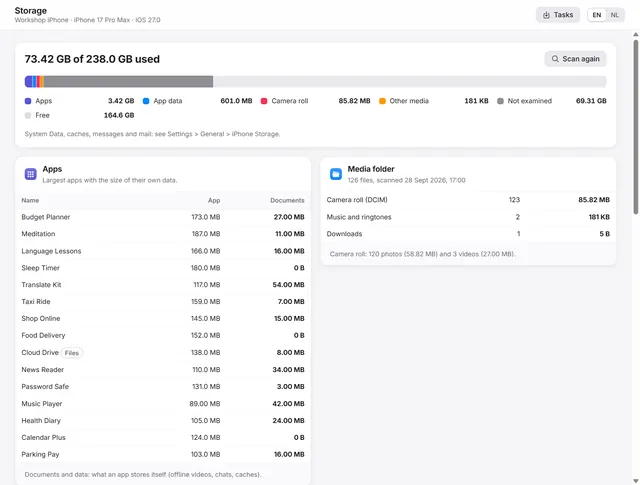
iPhone storage full? Find out what uses the space
Where the space goes: apps and their data, the camera roll, the largest files, the areas in a backup and duplicate exports on the PC. Pro -
 Device
Transfer files between iPhone apps and Windows
Documents of apps with file sharing: open, export, drag to Explorer, add files, create folders, rename and delete. Pro