
DevicePro
Manage iPhone apps from a PC: list, install an .ipa, remove, export
The Apps page lists every app on the connected phone, with its real icon, version, size and the Apple Account it was installed with. From here you install an app file, remove apps and export the list. The page is part of Pro.
The totals
At the top, four numbers: the number of installed apps, the size of the apps themselves, the size of their documents and data, and the number of Apple Accounts that installed apps on this phone. The last one is useful when you check a second-hand phone: apps from several accounts show that more people used it.
The list
Choose Installed for the apps the user installed, or System for the apps that come with iOS. For each app:
| Column | Content |
|---|---|
| Name | The app name and its bundle ID, with the app icon |
| Source | App Store, Developer (installed from Xcode or a developer tool) or Other |
| Apple Account | The account the app was downloaded with |
| Version | The installed version |
| App | The size of the app itself |
| Documents | The size of its documents and data |
Click a column header to sort, for example by Documents to see which apps store the most data. Use the search field to find an app by name, bundle ID or Apple Account.
Filter by Apple Account
Above the list, the chips under Apple Account: show every account with its number of apps. Click one to show only the apps of that account; click it again to show all.
Install an app file (.ipa)
- Click Install app (.ipa).
- Choose the
.ipafile. - The installation runs as a task; follow it under Tasks. When it is done, the app appears in the list.
iOS only installs apps that are signed for it, for example your own app from a developer account or an app signed for this device. iOS refuses other files.
Remove an app
Click Remove next to an app on the Installed tab and confirm. The app and its data are deleted from the phone; data stored in iCloud is not affected. The removal runs as a task. System apps cannot be removed here.
Export the list
Export list saves the installed apps as a CSV file that opens in Excel: name, bundle ID, version, Apple Account, and the app and document sizes in bytes. Useful for your records when a customer hands in a phone.
Questions
Why does an app show no Apple Account?
Apps from Xcode, test apps and some preinstalled apps have no purchase account. The column then stays empty.
Can I back up a single app with its data?
Not from this page. A full backup contains the data of every app, and the backup browser can export the files of one app from a backup.
Related guides
-
 Device
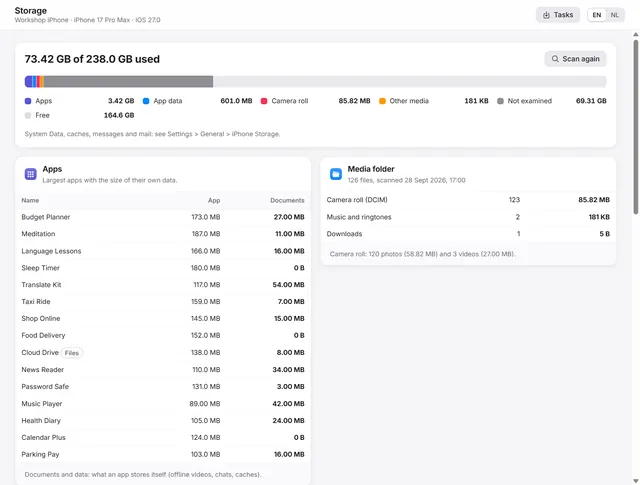
iPhone storage full? Find out what uses the space
Where the space goes: apps and their data, the camera roll, the largest files, the areas in a backup and duplicate exports on the PC. Pro -
 Device
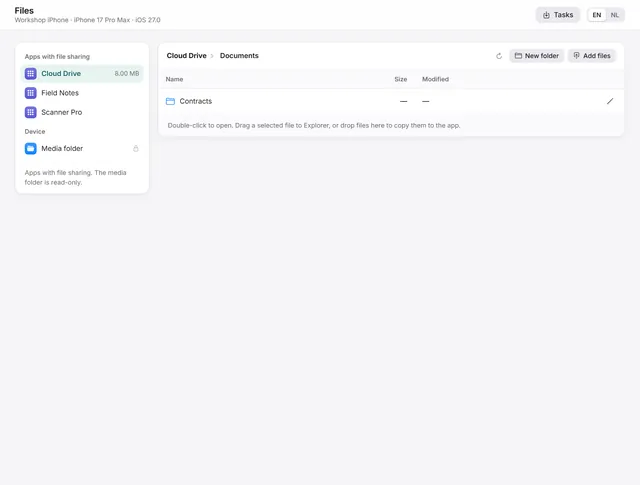
Transfer files between iPhone apps and Windows
Documents of apps with file sharing: open, export, drag to Explorer, add files, create folders, rename and delete. Pro -
 Device
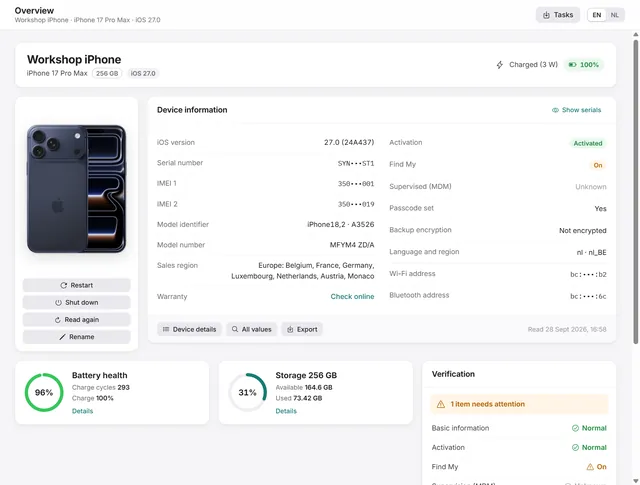
Device overview: serial number, IMEI, battery health and storage of an iPhone
Identity, activation, Find My, battery health, charge cycles and storage at a glance, with every value the phone returns. Free and Pro -
 Backups and data
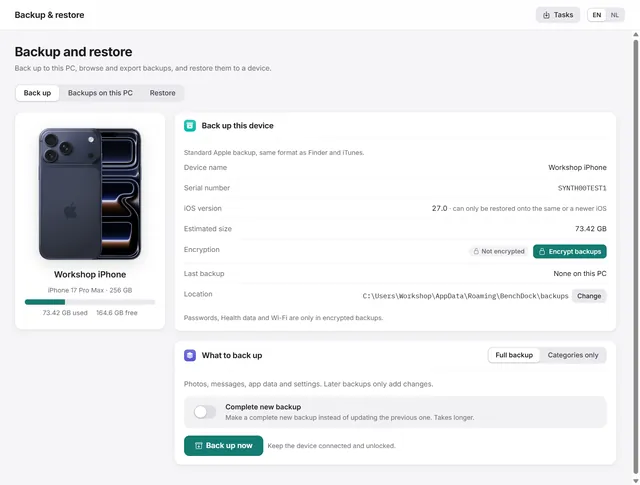
How to back up an iPhone on Windows, encrypted or not
Apple-format backups with or without encryption, every backup on the PC in one list, and restoring to a device. Pro